Inbound webhooks
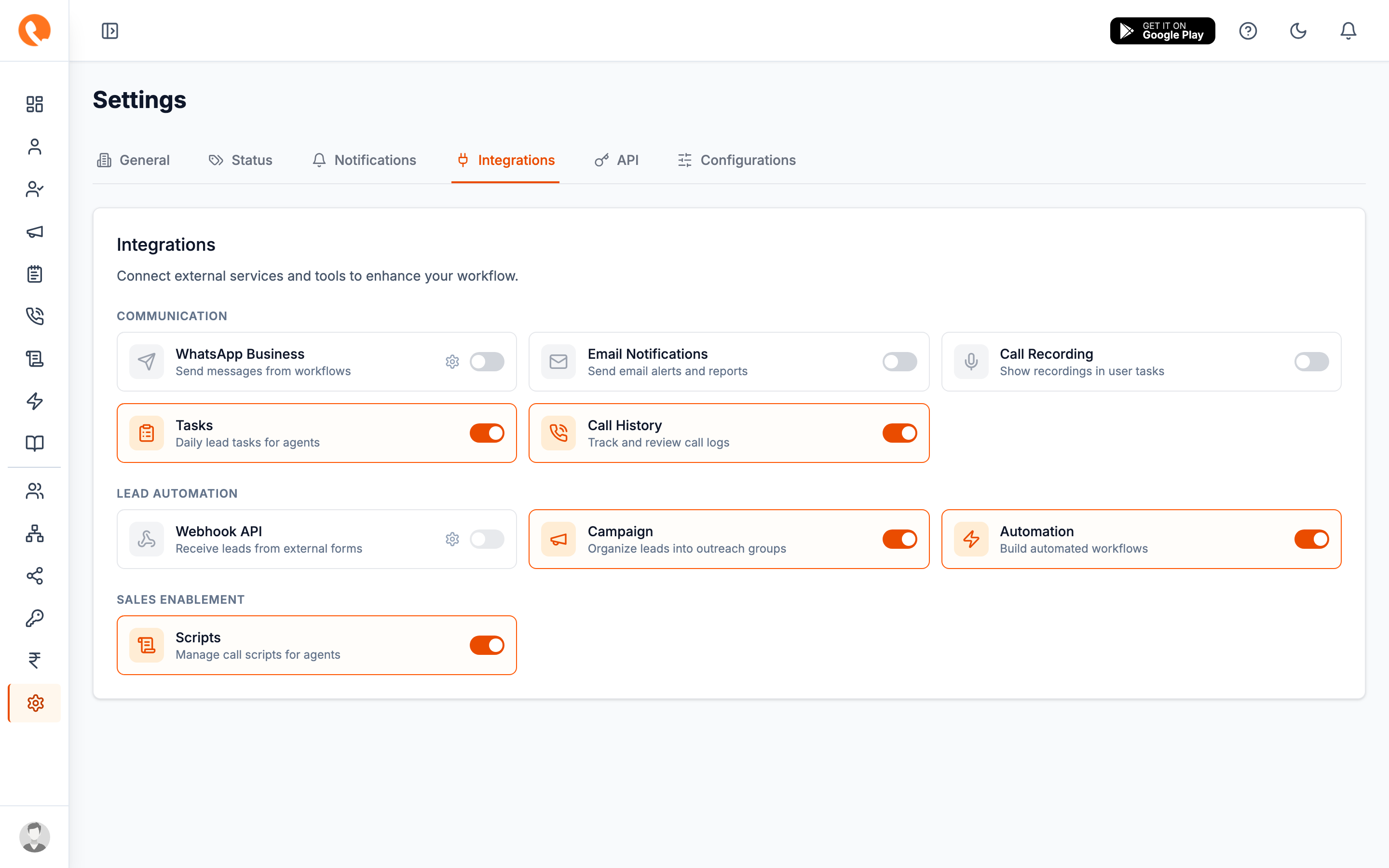
Settings → Integrations → Webhook API → Configure
Inbound webhooks are how external systems push leads into Calliyo — typically web forms, landing pages, ad-platform lead-gen submissions, or a Zapier-style integration.
This is separate from the outbound webhooks attached to API tokens.
How it works
- You create a webhook key in Calliyo. You get a URL and a secret token.
- Your external system POSTs lead data (name, phone, email, …) to that URL, passing the token.
- Calliyo creates the lead, optionally tags it, sets its initial status, and makes it available to your team or your auto-assignment job.
Creating a key
Click Add Key in the drawer. Fields:
| Field | Notes |
|---|---|
| Name | Internal label — “Landing page”, “FB lead form”, “Zapier - Mailchimp”. |
| Allowed domains | Comma-separated list. Calliyo rejects POSTs from origins not on this list. Wildcards (*.example.com) are supported. Leave empty to allow any origin (not recommended). |
| Honeypot field name | The hidden form field your front-end form includes for bot protection. If the field is non-empty in the POST, Calliyo silently drops the lead. |
| Default lead status | Status to assign new leads from this webhook. Typically Unassigned. |
| Default tags | Tags every lead from this webhook gets. Useful for source attribution. |
Endpoint shape
Once a key is created, you’ll see its URL and token in the key list. POST to that URL with a JSON body containing at least:
{
  "name": "Alex Customer",
  "phone": "+91 98765 43210",
  "email": "alex@example.com"
}
Pass the token as a header:
X-Webhook-Token: wh_live_…Calliyo responds with the created lead’s ID, or an error matching the standard envelope.
Honeypot, in practice
Add a hidden field to your form. Don’t reveal it to humans (display: none). Bots fill all fields, so a non-empty value means it’s a bot. Calliyo drops those silently — your lead pipeline stays clean.
<input type="text" name="company_url" style="display:none" tabindex="-1" autocomplete="off">Then set Honeypot field name to company_url in the webhook key.
Editing / rotating
- Show/Hide — reveal the token in the key list.
- Copy — copy to clipboard.
- Regenerate — issues a new token; the old one stops working immediately.
- Edit (pencil) — change name, domains, honeypot, default status/tags without rotating the token.
- Delete — permanently remove the key.
The key list also shows the request count for each key — a quick way to see which sources are actually delivering leads.