Making calls & call feedback
When you tap a lead in the Tasks tab (or anywhere else in the app), Calliyo hands off to your phone’s native dialler to actually place the call. After you hang up, Calliyo takes over again with the Call Feedback screen, which is where you log what happened.
The full call flow
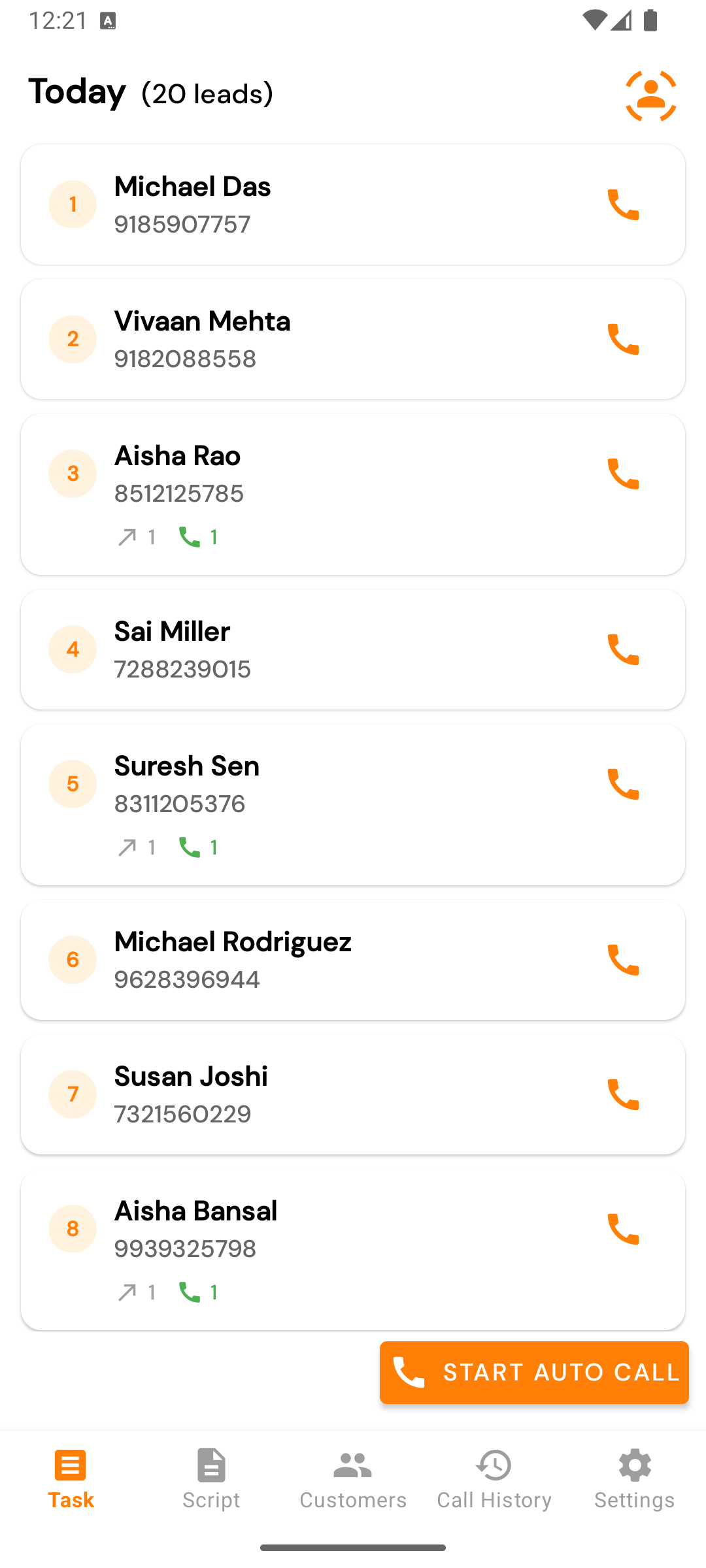
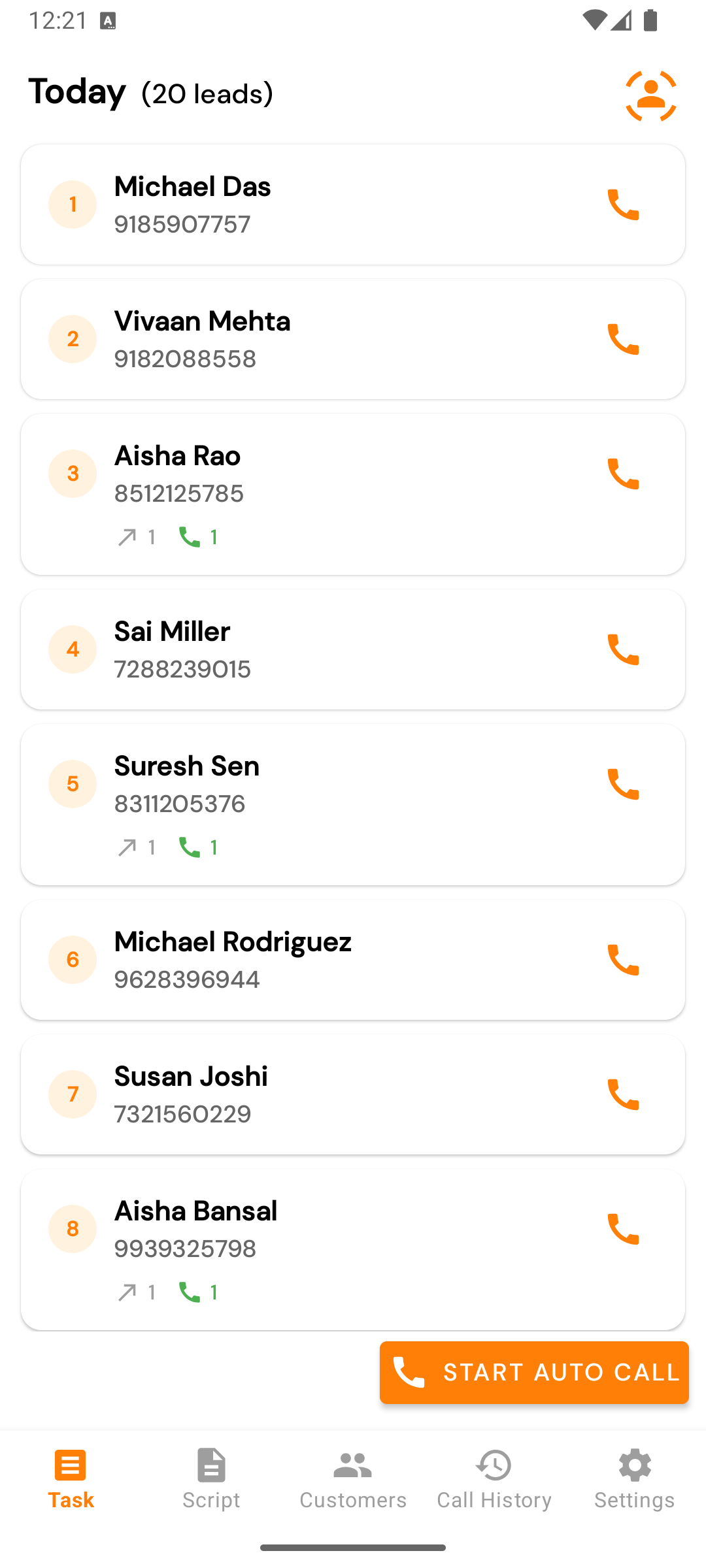
Tap to call
From Tasks, Follow-ups, Customers, Call History, or the dial pad — tap the lead’s row or call button.
Phone permission (first time only)
If this is the first call you’ve placed in Calliyo, Android will ask for Phone permission. Tap Allow. Without it, calls fail silently.
Native dialler takes over
Your phone shows its dialler / in-call screen and dials the number. Talk as normal.
Hang up
When you (or the lead) end the call, control returns to Calliyo. The Call Feedback screen opens automatically.
Log the outcome
This is the important bit. Pick a status, optionally add details, hit Submit. Details below.
The Call Feedback form
Fields you’ll see (some show/hide based on the status you pick):
Status (always shown)
A dropdown with statuses your admin configured. Typical options:
| Status | When to pick it |
|---|---|
| Interested | Lead wants more info, demo, callback. Shows note & follow-up date fields. |
| Not Interested | Lead said no. |
| Follow-up | Need to call again at a specific time. Shows follow-up date. |
| Call Later | Same idea — defer to a specific time. |
| Wrong Number | Lead’s number is wrong. |
| Busy / No Answer | Couldn’t connect. |
The exact list comes from your company’s lead-statuses config on the web app.
First name / Last name
Shown for some statuses (mainly when the lead was created from a dial-pad call and doesn’t yet have a name). Edit if you’ve learned the correct name.
Note (multi-line)
Free-text. Capture what the lead said, objections raised, anything future you needs to remember. Notes are gold.
Follow-up date & time
Shown for statuses that imply a callback — Interested, Follow-up, Call Later, Rescheduled, Callback.
- Default: 2 hours from now.
- Format:
dd/MM/yyyy | hh:mm AM/PM. - Tap the field to open a date picker, then a time picker.
Submit
Sends three things to the server (which one depends on context):
- A new call record with the call duration & status.
- A status change on the lead (if your status implies one).
- A new follow-up record (if you scheduled a follow-up).
After submit, the lead row is removed from your Tasks list (because it either moved to a different status or already has a follow-up scheduled).
Cancel
Closes without saving. Don’t. If you cancel after a call, the call isn’t logged — your call history will be missing it and your daily count won’t reflect the work you did.
Dial-pad calls
You don’t have to call from a lead row. From the Customers tab, tap the dial pad floating button to enter any number.
When you hang up from a dial-pad call:
- Calliyo opens Call Feedback as usual.
- The lead doesn’t exist yet, so Calliyo will create one on submit using the number you dialled and any name/notes you entered.
This is how field agents capture walk-ins or callbacks from numbers that weren’t on their assigned list.
What about missed calls / incoming calls?
The mobile app focuses on outbound. If a lead calls you, Android shows its native incoming-call UI; Calliyo isn’t involved. After the call ends, no Feedback screen appears automatically. To log the call, open Call History → + (or call them back from the app).
Don’t log calls in the web app and the mobile app at the same time for the same call. You’ll end up with duplicate records and inflated counts. Pick one device per shift.
What if the Feedback screen didn’t open?
A few causes, easy to fix:
- Phone-state permission denied → grant it under Android Settings → Apps → Calliyo → Permissions → Phone.
- Calliyo was in the background when the call ended → on some manufacturers (Xiaomi, Oppo), the app can’t auto-launch from background. Re-open Calliyo and tap the lead’s row to log manually.
- You called from outside Calliyo (your phone’s regular dialler) — Calliyo only tracks calls that started from within the app.