Settings
Tabs bar → Settings
The mobile Settings tab is for agent-level preferences — not company configuration. Anything that affects your whole team lives in the web app.
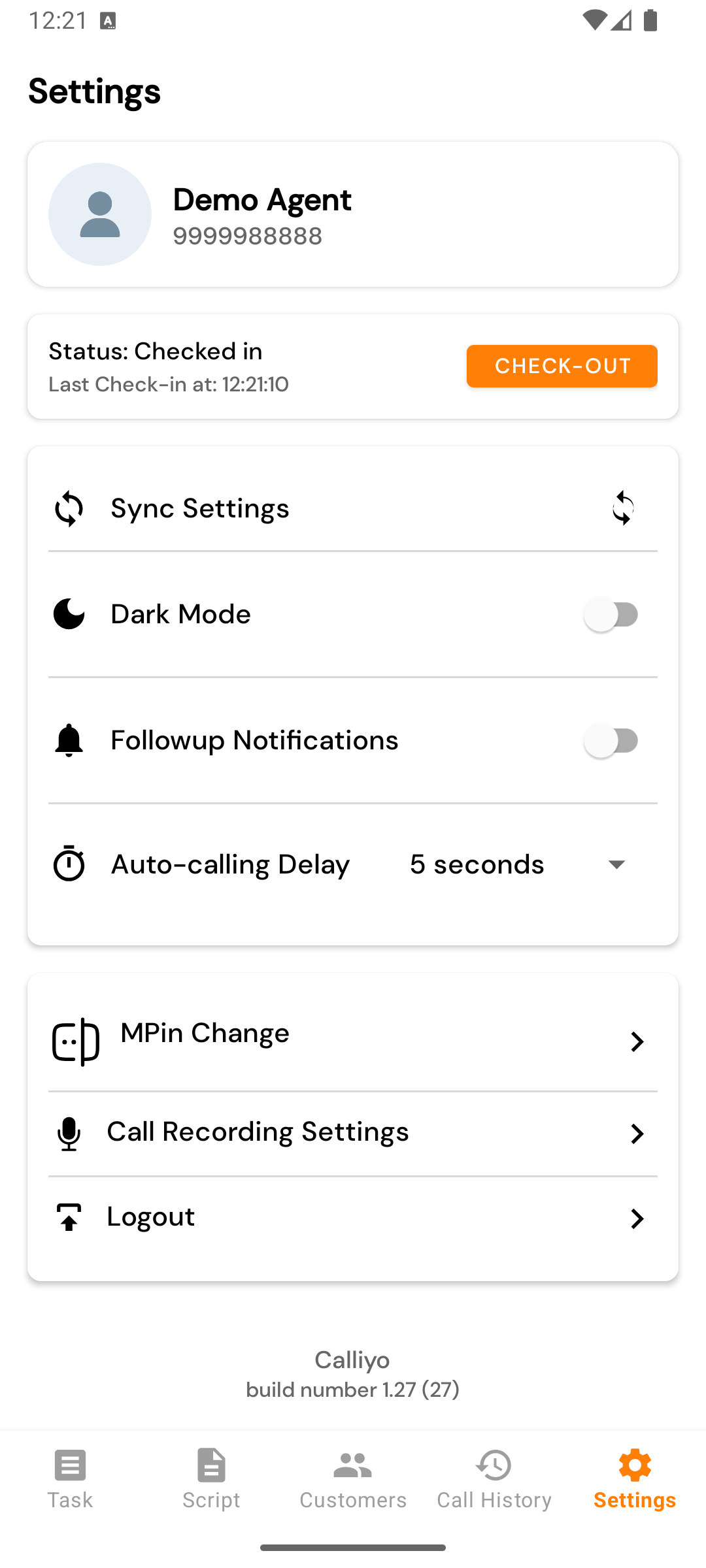
Sections you’ll see
Profile
| Field | Source |
|---|---|
| App name | Always “Calliyo”. |
| Build number | The installed version. Mention it when you contact support. |
| Mobile number | The number you signed in with. Read-only. |
| Name | Your name as your admin entered it. Read-only. |
Toggles
| Toggle | What it does |
|---|---|
| Dark Mode | Switch the app theme between light and dark. Takes effect on the next screen change. |
| Notifications | Master switch for follow-up reminders. Requires Android’s notification permission (auto-requested when you turn it on for the first time on Android 13+). |
| Call Recording (opens its own screen) | Configure capture & upload of call recordings — see Call recording. |
Auto-Call Delay
Dropdown — 5, 10, 15, 20, 25, or 30 seconds.
Controls the countdown between dials when Auto Call mode is active. Lower = faster; higher = more breathing room.
Sync Settings
Tap to force-refresh your company’s settings (lead statuses, enabled modules, etc.) from the server. The icon spins while it syncs.
You normally don’t need to tap this — Calliyo syncs in the background. Use it when your admin just changed something on the web app and you want it to reflect immediately.
Attendance status
Shows:
- Last Check-in at:
2026-05-11 09:30 AM - Status:
CHECKED_IN/CHECKED_OUT
Plus a Check-out button. Tapping check-out:
- Submits
POST /agents/attendance/checkout. - Clears your local “checked in” flag.
- Takes you back to the Attendance screen on next launch.
Change M-PIN
Opens the mPIN change flow.
Logout
The nuclear option. Clears your auth token, your “checked in” flag, and sends you to the sign-in screen. Use this when you’re handing the phone to another agent.
Logout does not erase call recordings stored on the device — those are managed by your phone, not by Calliyo. If you’re worried about recording privacy, delete the recordings folder yourself.