Attendance check-in
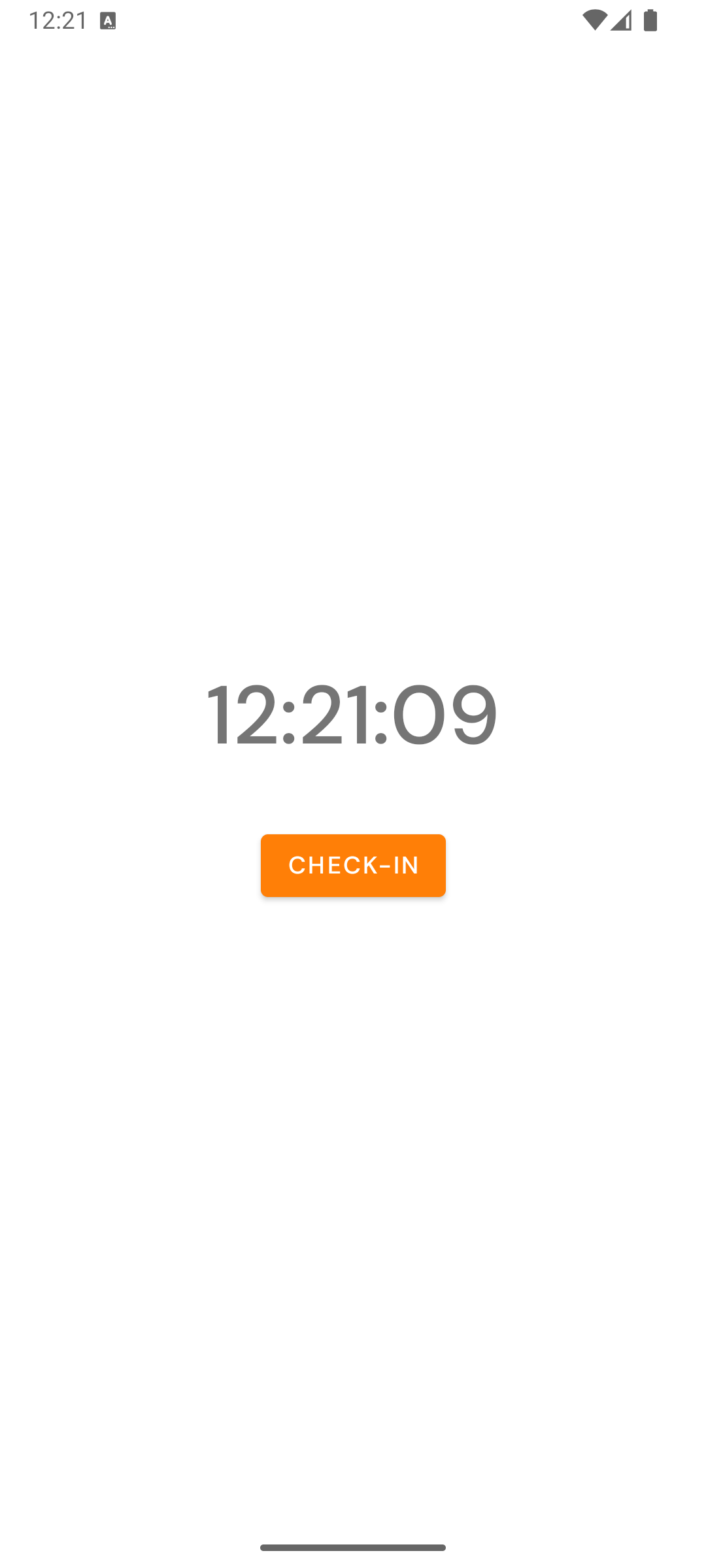
Every fresh launch of Calliyo (after sign-in or after the previous day’s auto-checkout) puts you on the Attendance screen. You can’t reach the Tasks tab until you’ve checked in.
Why this exists
For most Calliyo customers, agents work fixed shifts. Attendance gives the team manager:
- A timestamp of when each agent started work today.
- Confidence that the lead activity they’re seeing in Reports lines up with a working day.
- An automatic stop-time (see auto-checkout), so leads aren’t worked at 1 AM under a sleepy agent’s name.
Checking in
The Attendance screen shows the current time, ticking each second. Tap the big Check-in button.
That’s it. The app sends POST /agents/attendance/checkin to the server
with your timestamp and current GPS location (if you’ve granted location
permission), and unlocks the Tasks tab.
What if the check-in fails?
If the network is down or the server is unreachable, you’ll see a toast error. Tap Check-in again to retry — Calliyo doesn’t queue check-ins offline.
Checking out
Two ways out:
- Manual — open Settings tab → Check-out. Your shift ends; the next launch will put you back on Attendance.
- Automatic — at 11:59 PM local time, Calliyo auto-checks-out in the background. See Auto-checkout.
Auto-checkout fires whether the app is open or not, as long as Android hasn’t killed Calliyo’s background alarms. On most devices that’s fine, but aggressive battery savers (Xiaomi, Oppo, Vivo) sometimes kill alarms — see Troubleshooting.
What admins see
Every check-in/check-out is logged on the server. Admins can review them under Reports on the web app, with filters for agent, date range, and branch.