5. Convert to customer
This is the moment the pipeline pays off. The lead said yes, signed the contract, or paid the invoice — whatever “yes” looks like for your team. Converting tells Calliyo to:
- Stop the lead from being auto-reassigned or topped up.
- Hide it from agents’ active task queues.
- Surface it on the Customers page.
- Count it in conversion metrics and revenue reports.
How conversion works
Conversion is, technically, just a status change. You set the lead’s status
to Customer (a protected status — see
Lead statuses) and Calliyo handles the rest.
Converting a single lead
Open the lead
From Tasks, Leads, or directly from a follow-up.
Change status to “Customer”
In the lead detail panel, click the Status dropdown and pick
Customer.
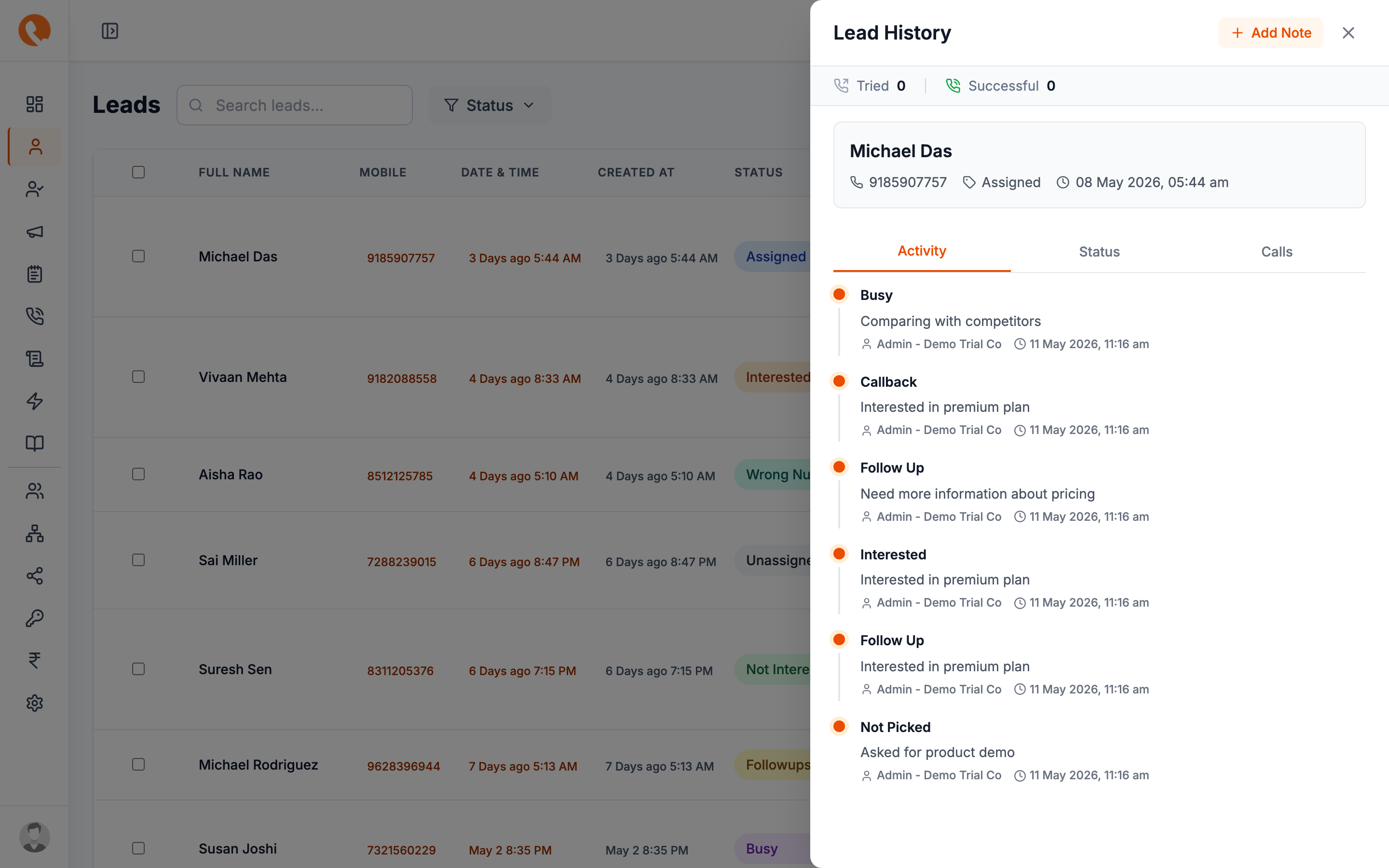
(Optional) Fill conversion details
If your team uses the Order module, you’ll be prompted to attach order details: amount, plan, payment status, GST, etc. Skip if you don’t use this.
Save
The lead disappears from the active Leads list and reappears in Customers. The agent gets the conversion attributed in their report.
Where customers live
Sidebar → Customers.
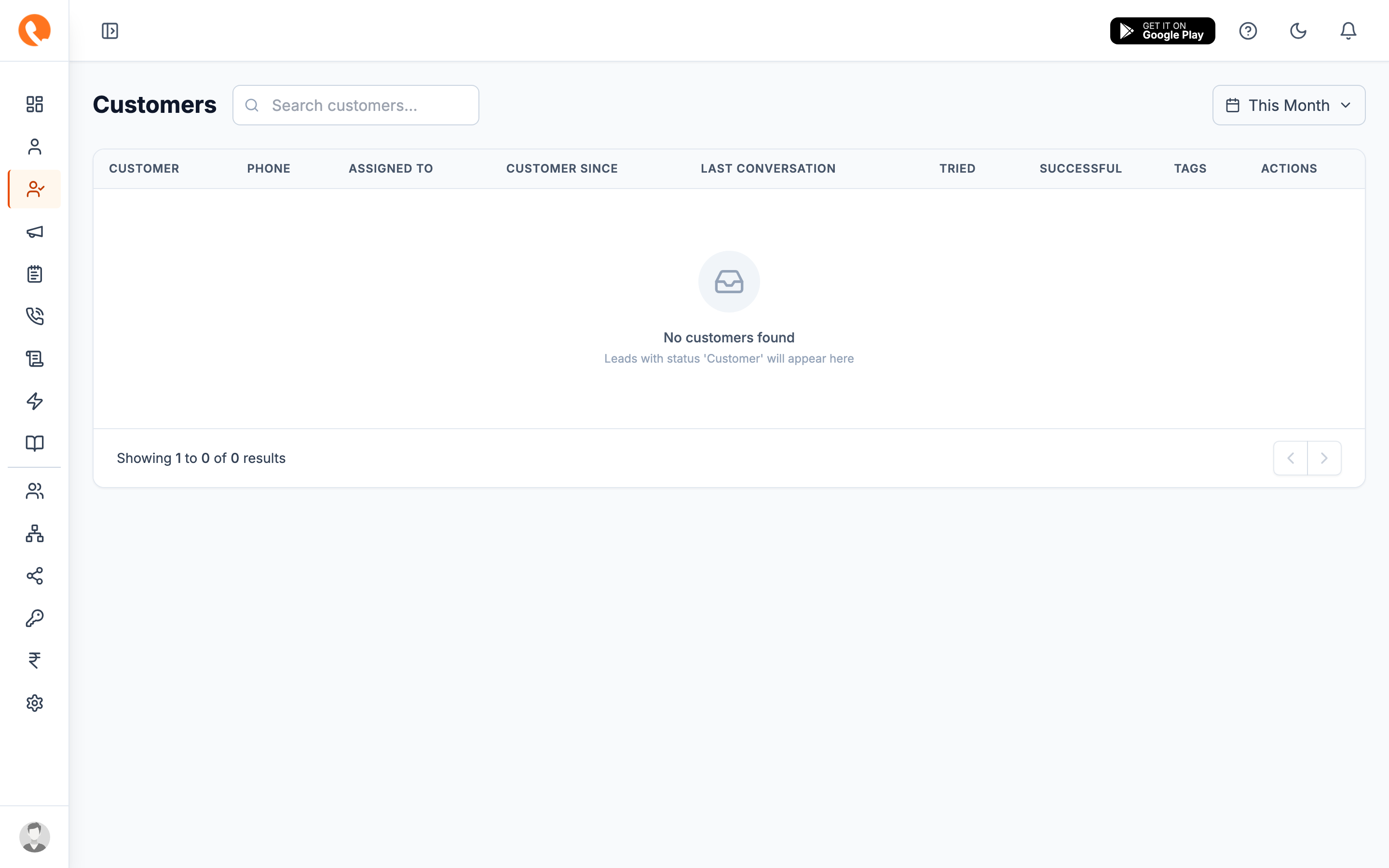
Each row is a converted lead. Click in to see:
- The full call & follow-up history (preserved from the lead).
- Order / payment info if attached.
- Notes (you can still add new ones — customers aren’t frozen).
Who can see Customers depends on Settings → Configurations → Show customer to. Set to Agent Only if you don’t want agents to see each other’s customers.
Un-converting (a.k.a. “the lead changed their mind”)
Sometimes a “Customer” needs to be moved back into the pipeline — refund, cancellation, mistaken conversion.
- Open the customer from the Customers page.
- Change the status back to a non-
Customervalue (e.g.Not InterestedorFollowups). - Save.
The record reappears in the Leads list and is excluded from the conversion counter retroactively. Notes and history are preserved.
Reporting
Once you have conversions, the Reports section starts being interesting:
- Conversion rate — % of leads that became customers, by source, agent, tag, or campaign.
- Time to convert — how long from
UnassignedtoCustomer. - Revenue per agent — if you attached order amounts.
See the Reports section (TODO: link when written) for details.
You’re done — for this lead
That’s the full lifecycle. Capture → Assign → Call → Follow up → Convert. A healthy team will have most leads in Followups at any given time, because nurturing is where the real selling happens.
Continue to Calls & follow-ups for deeper detail on the call status taxonomy and the notes-vs-follow-ups distinction.