Scripts
Tabs bar → Scripts
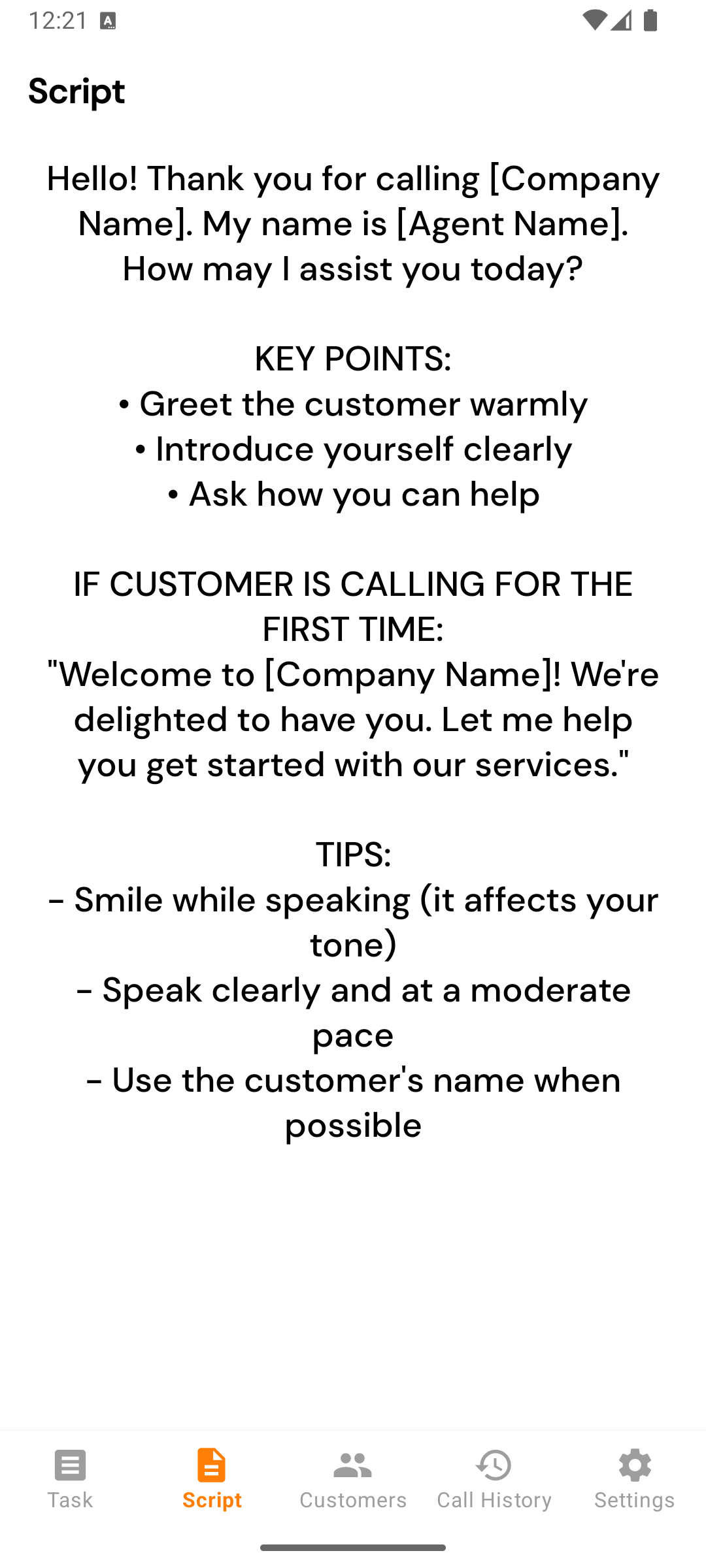
A read-only display of your team’s current call script. Use it as a prompt during calls — opening lines, objection handlers, closing language.
How scripts are managed
You can’t edit scripts from the mobile app. Your admin authors them on the web app at Settings → Scripts (or Sidebar → Scripts).
When the admin updates a script, the mobile app picks it up the next time the Scripts tab is opened (or when you tap Sync Settings in the Settings tab).
What the screen looks like
A single block of text. Whatever your admin entered. No formatting beyond line breaks.
If you find yourself wishing the script were structured (sections, collapsible parts, role-play branches), tell your admin. They can break it into multiple short scripts on the web side. The mobile app shows whichever script is currently flagged as the active one.
Empty state
If your admin hasn’t created any scripts:
No script found. Please contact admin.
The Scripts tab also disappears entirely from the bottom nav if your admin disables the Scripts integration on the web app. See Integrations for that toggle.
A common workflow
- Glance at the script tab before your shift.
- Tap a lead in Tasks → place the call.
- If you forget your opening line, double-tap home and pull the Scripts tab back up. The lead’s still being called in the background.