Sign in & mPIN
Calliyo’s mobile sign-in is phone number + mPIN. There’s no email, password, or one-time code. Your admin creates your account on the web app with your phone number and a 4-digit mPIN, then shares the mPIN with you.
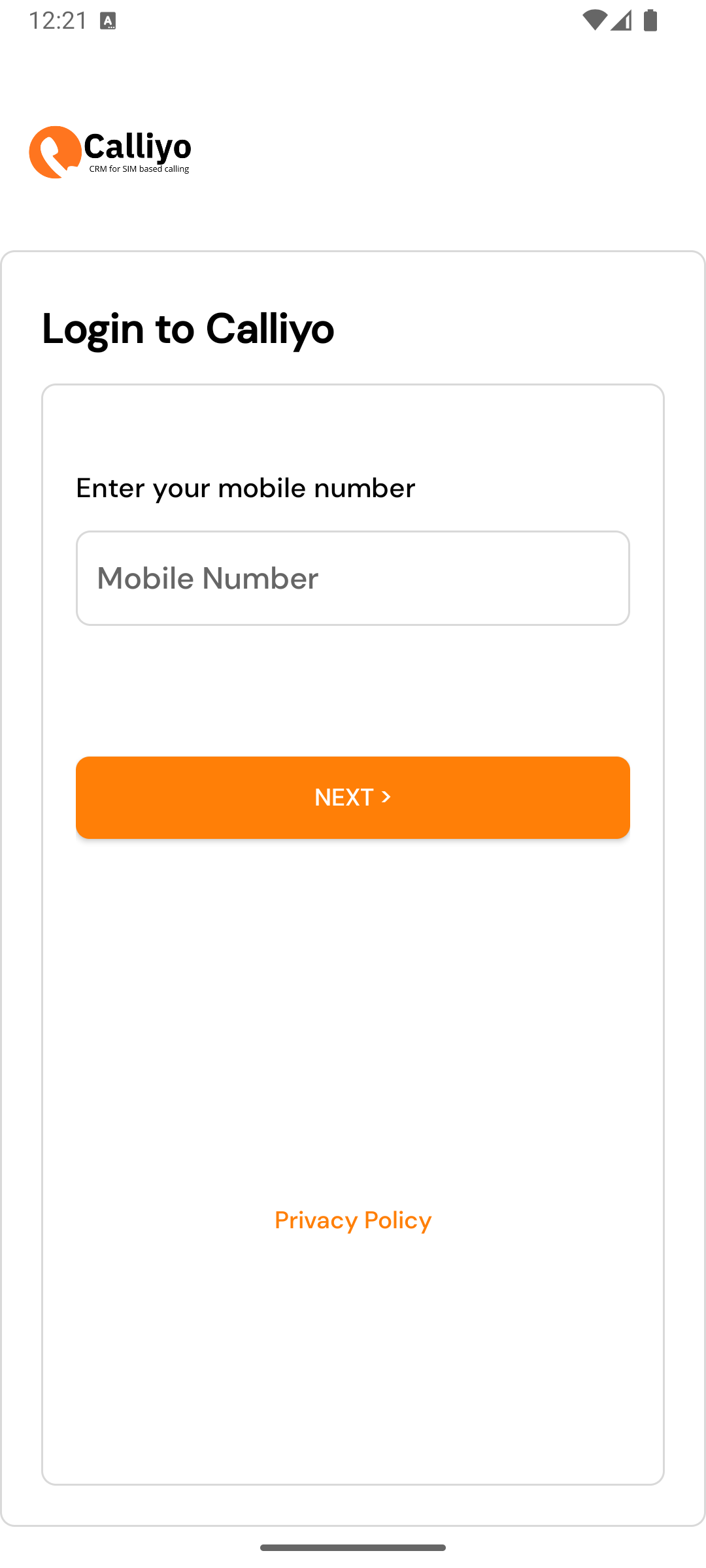
How to sign in
Enter your mobile number
The number must match what your admin entered when creating your user.
Format: 10 digits, numeric only (no +91 prefix on the mobile app).
Tap Next.
Enter your mPIN
A 4-digit (sometimes 6, depending on company config) PIN. The dots mask each digit as you type.
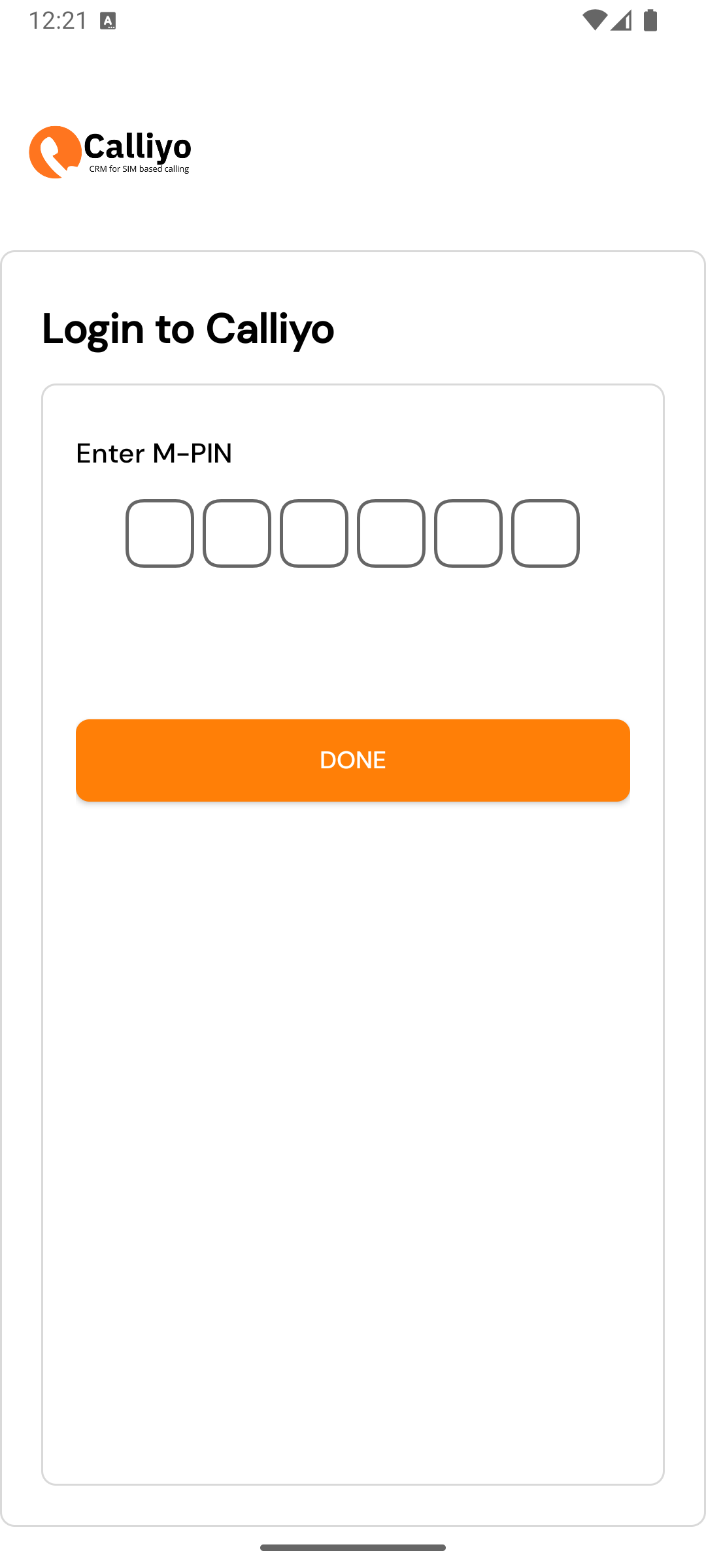
Tap Done.
Success → attendance
You’ll be taken to the Attendance screen to check in. See Attendance check-in.
When sign-in fails
| Message | What it means | What to do |
|---|---|---|
| Invalid mobile number | Number isn’t on any Calliyo user. | Check the number with your admin. |
| Invalid M-PIN | Wrong PIN for this number. | Ask your admin to reset your mPIN. |
| User is banned / inactive | Admin disabled your account. | Contact admin. |
| Network error | Phone has no internet, or the server is unreachable. | Check connectivity, retry. |
There is no “Forgot mPIN” flow in the mobile app. You must contact your admin to reset it. Admins reset mPINs from Settings → Users → (your row) → Reset mPIN.
Changing your mPIN
Once signed in, change your mPIN from Settings tab → Change M-PIN. You’ll be asked for the current PIN, a new PIN, and a confirmation.
This is the same mPIN your admin set — there’s only one per account.
Staying signed in
Calliyo remembers your sign-in until:
- You log out from Settings.
- Your admin bans your account or resets your mPIN.
- The server invalidates your token (rare — e.g. a forced re-auth for security reasons).
In any of those cases, the next API call returns 401 and Calliyo bounces you back to the sign-in screen.
Privacy
The phone number, name, and mPIN you enter are submitted to your company’s Calliyo backend. Auth tokens are stored in Android’s EncryptedSharedPreferences — they never appear in logs or backups.