3. Call the lead
Once a lead is assigned, the agent’s job is to call. Calliyo doesn’t dial the phone for you (yet) — it’s a CRM, not a dialler — but it captures every call’s outcome so your pipeline reflects reality.
The agent’s view
When an agent signs in, the Agent dashboard shows:
- Today’s call target (the number from Settings → Configurations).
- A progress bar of calls made vs. target.
- The Tasks list — every lead on their queue, sorted by priority.
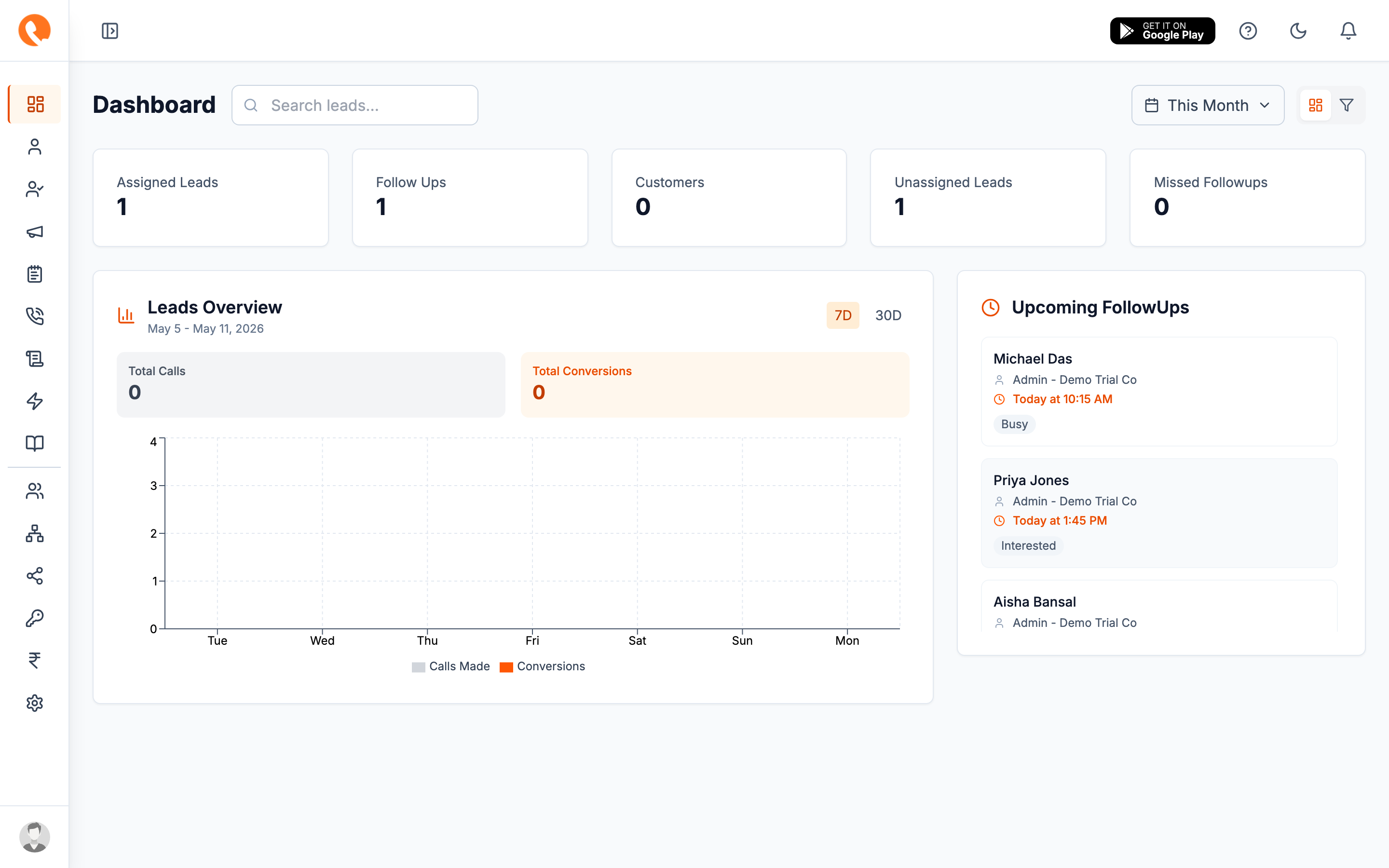
Clicking a task opens the lead detail with the call panel ready.
Making a call
Open the lead
From Tasks or from the Leads list, click the lead’s row to open the detail panel.
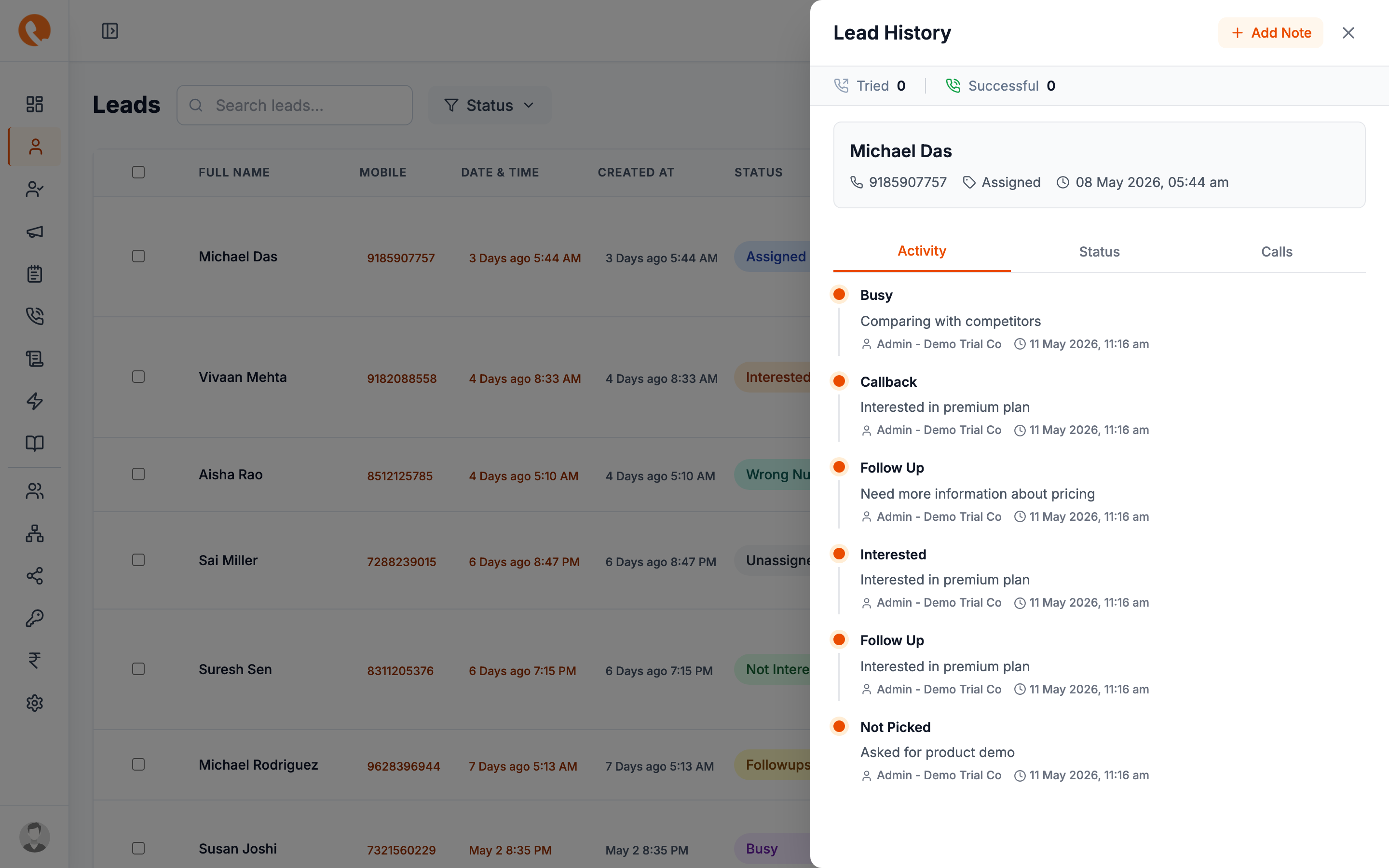
Dial outside Calliyo
Use your phone, softphone, or whatever dialler your team uses. Calliyo shows the lead’s phone number on the right.
Choose a script (optional)
If your team uses call scripts, pick one from the dropdown. The script content appears next to the lead’s details — you can read straight off the screen.
Log the outcome
When the call ends, click Log call and pick a status:
| Status | When to pick it |
|---|---|
| Called | You connected and had a real conversation. |
| Busy | The line was busy. Try again later. |
| No Answer | Rang but no pickup. |
| Missed | Caller hung up before you could pick up (rare for outbound; common on inbound). |
| In-progress | A long call still ongoing — useful for visibility on big team accounts. |
| Follow up | You spoke, and there’s a scheduled next step. |
| Rescheduled | The lead asked to be called back at a specific time. |
See Call statuses explained for the full nuance.
Record duration
Calliyo records duration automatically if you used the in-app dialler plugin. For manual logging, type the duration in seconds or minutes:seconds.
A call with duration > 0 counts as a “connected call” in Reports — regardless of the status. This is how the report knows the lead actually picked up.
Save notes
The Add note field lets you capture context: what the lead said, what they care about, what to bring up next time. Notes show up on the lead’s timeline and on every future call’s screen.
Update the lead’s status (optional)
After the call, change the Status dropdown to reflect what happened —
e.g. Interested, Not Interested, Wrong Number. If you set a
follow-up date, the status flips to Followups automatically.
Inbound calls
If a lead calls you, the agent goes to Sidebar → Call history, finds the inbound call, and clicks Log to fill in the details. Inbound calls from a known phone number are auto-linked to that lead.
What if it’s the wrong number?
Pick the Wrong number status. This:
- Marks the lead so it won’t be auto-assigned again.
- Excludes it from your agent’s daily count.
- Is reported separately on the Wrong-number metric in Reports.
If your data source is leaking many wrong numbers, you have a list-quality problem — surface it to whoever’s running lead capture.
What happens next?
Most calls result in either a follow-up (to call again later) or a conversion. The next page covers follow-ups → Schedule follow-ups.