2. Assign to an agent
A lead is just a row in a list until someone is responsible for working it. Assignment puts a lead on a specific agent’s queue.
There are three ways to assign — manual, bulk, and automatic.
Manual assignment (one lead)
Open the lead
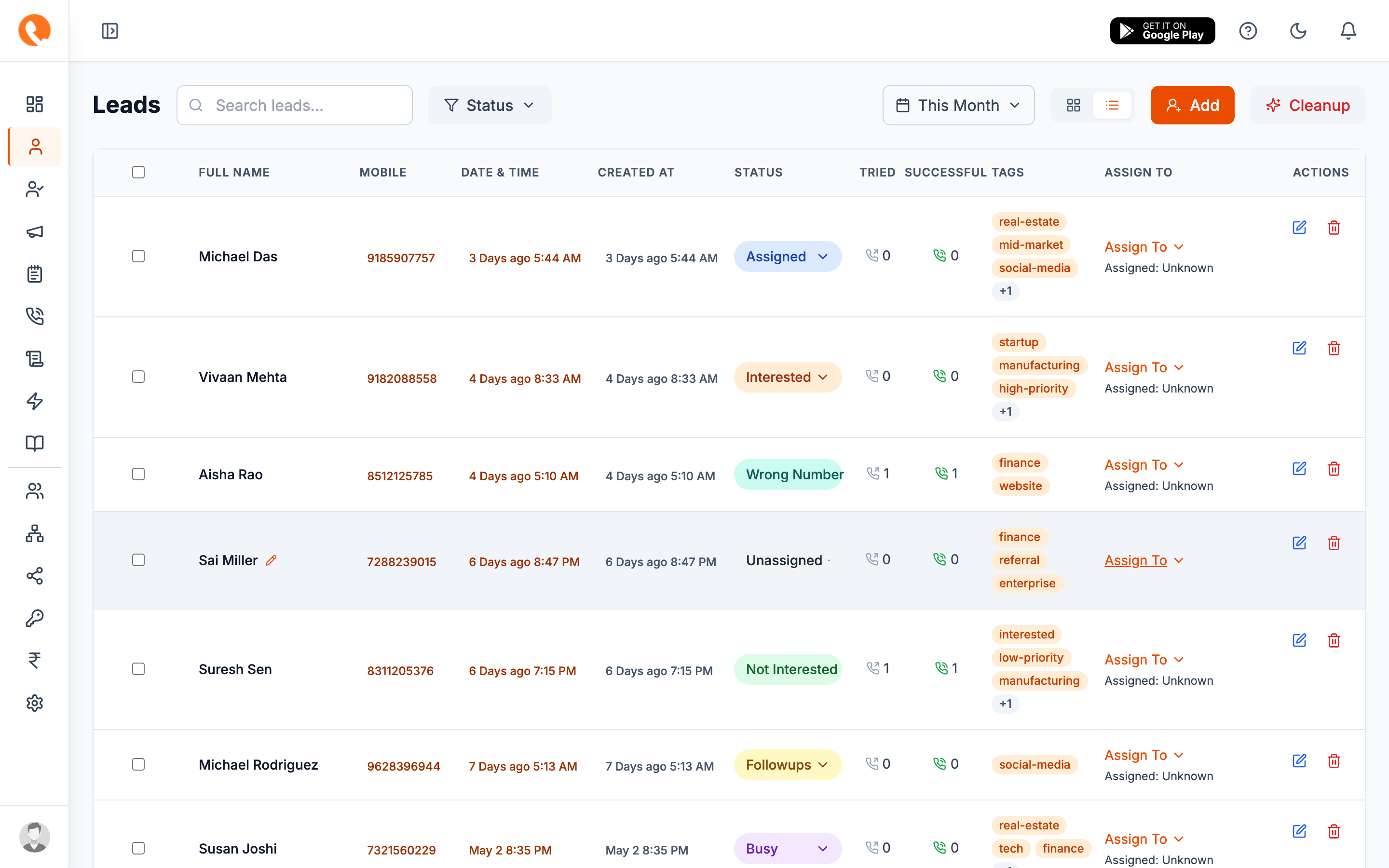
Sidebar → Leads, then click the row of the lead you want to assign.
Pick an agent
In the lead detail panel, find the Assigned to field. Click it and choose an agent from the dropdown. The list shows agents in your branch / department who have the Agent role.
Save
The lead’s status flips from Unassigned to Assigned (or whatever
status corresponds to “in progress” in your pipeline). The agent now sees
it on their dashboard and in their Tasks list.
Bulk assignment
When you’ve just imported a CSV or have a backlog of unassigned leads, manual assignment is too slow.
Filter to “Unassigned”
On the Leads page, click the Status filter chip and pick
Unassigned. You’ll see only un-owned leads.
Select multiple
Tick the checkbox on each row, or use the header checkbox to select all visible rows.
Assign
Click the Assign to action above the table. Pick an agent. All selected leads move to that agent.
Bulk-assigning to one agent is rarely what you want. For round-robin distribution, use Auto lead assignment below.
Auto lead assignment
For high volume, let Calliyo handle assignment on a schedule.
The full config lives in Settings → Configurations → Auto lead assignment. In short:
- Enable auto assignment.
- Pick which statuses are eligible for re-assignment (typically
Unassigned,Not Picked,Missed). - Pick a run time — usually early morning.
- Save (requires password confirmation).
What it does:
- At the configured time, looks at every lead in an eligible status.
- Picks agents who are below their Lead cap (set on each user record).
- Distributes leads as evenly as possible.
You can also click Run Now to force a run immediately. The Configurations panel shows the last run’s outcome:
Last run: 2026-05-11 09:00 — 42 leads assigned across 6 agents, 3 unassigned (agents at cap).Daily top-up
A close cousin of auto-assignment. Every morning, Calliyo can top up each agent’s queue to their lead cap — pulling in fresh leads as the agent works through yesterday’s.
Configured at Settings → Configurations → Daily lead top-up.
What about re-assigning?
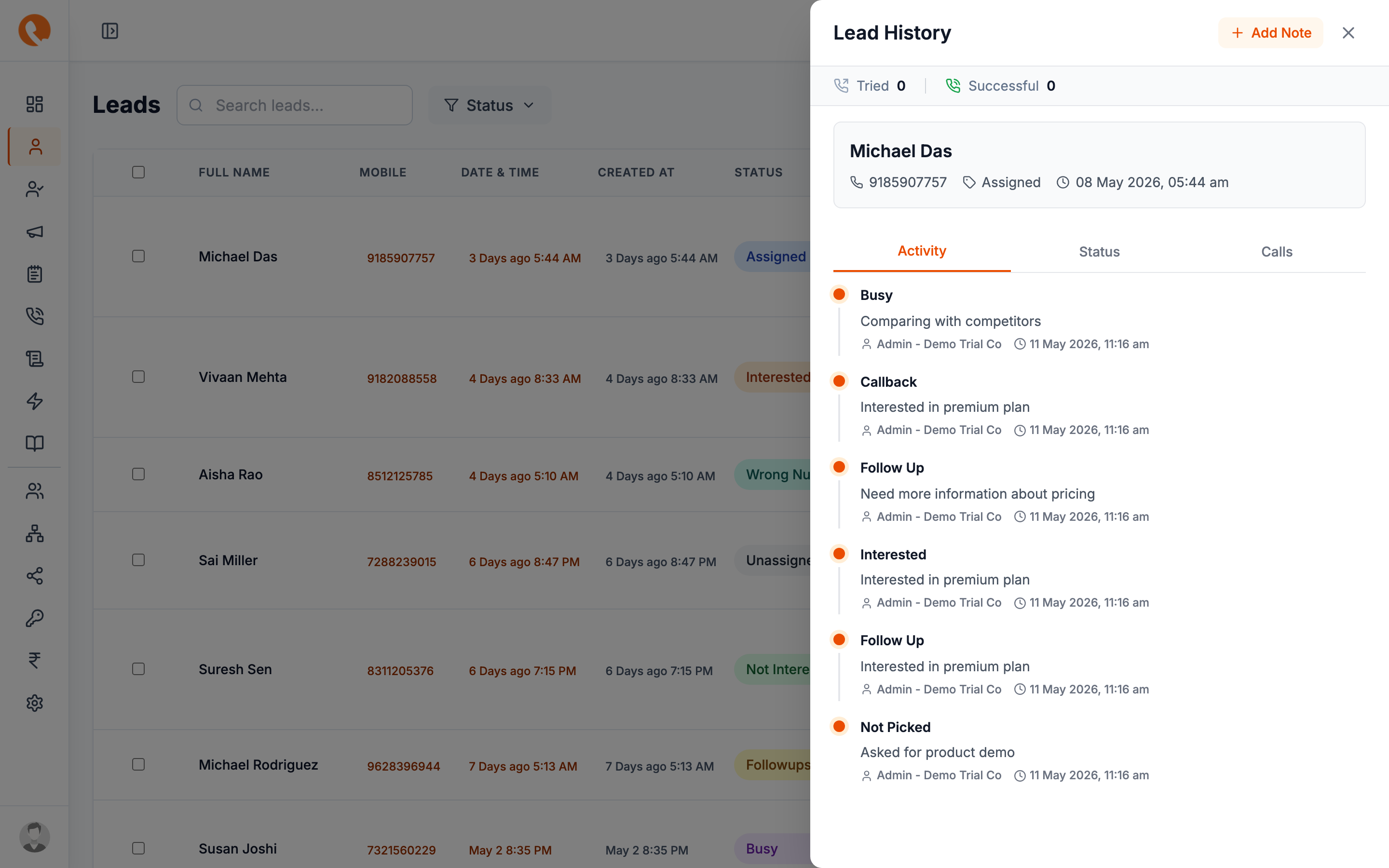
To re-assign a lead from one agent to another, repeat the manual or bulk flow. The previous agent loses the lead from their queue; the new agent gains it. The lead’s history (calls, notes, follow-ups) follows the lead, not the agent.
What happens next?
Once the lead is on an agent’s queue, the agent starts calling → Call the lead.