Call recording
Calliyo can attach an audio recording of each call to that call’s record on the server. Recordings then show up on the web app’s Call History, playable inline.
This page explains the (somewhat picky) setup needed to make it work on modern Android, plus the privacy & legal caveats.
What Calliyo does — and doesn’t do
Calliyo does not record calls itself. Android removed the ability for third-party apps to record phone calls in Android 10. What Calliyo actually does:
- Detects when a call you started in Calliyo ends.
- Looks in the recording folder you’ve chosen for an audio file timestamped within ~1 minute of the call.
- Uploads that file to Calliyo’s S3 bucket and attaches it to the call record.
So Calliyo’s “recording” feature is really a recording-pickup feature. It depends on your phone (or a third-party dialler) producing the recording file.
Devices & dialers that work
Recording reliability depends on your manufacturer:
| Manufacturer / Dialler | Recording? |
|---|---|
| Stock Android / Google Phone | Recording UI exists but files are not accessible to other apps — doesn’t work. |
| Samsung / OneUI | Built-in recorder writes to /sdcard/Recordings/Call/ — works. |
| Xiaomi / MIUI | Built-in recorder works; folder varies by version. |
| OnePlus / OxygenOS | Works on most builds. |
| Realme / Oppo / Vivo (ColorOS, Funtouch, RealmeUI) | Generally works. |
| Pixel | Doesn’t work out of the box. |
| iPhone | Calliyo isn’t on iOS yet. |
If the Settings screen warns “Call recording not allowed by your default dialler”, that’s why — your dialler doesn’t expose recordings to other apps.
Setup
Settings tab → Call Recording → Call Recording Settings
You’ll see a screen with three sections:
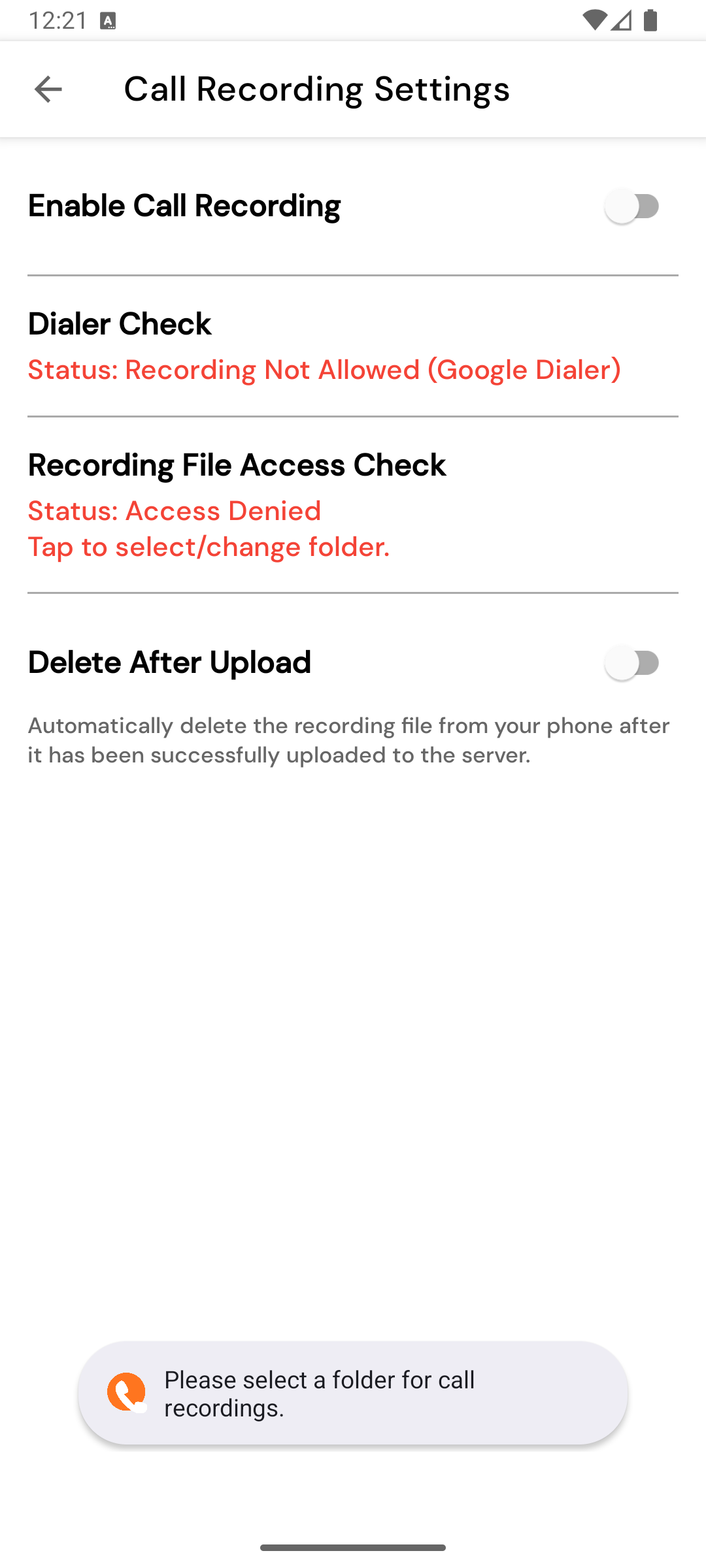
1. Status checks
Two read-only indicators:
| Check | Meaning |
|---|---|
| Google Dialer check | Tells you whether Google’s Phone app is your default dialler — and whether that dialler allows third-party access to recordings. |
| File access check | Whether you’ve granted Calliyo read access to a recordings folder. |
2. Enable Call Recording
A switch. Off by default. Turn on to enable the pickup feature.
3. Delete recording after upload
A second switch. When on, Calliyo deletes the source audio file from your phone after a successful upload. Saves storage; means you can’t play recordings locally.
Picking the recordings folder
Tap File access check to open the Android folder picker. Navigate
to wherever your phone stores recordings (e.g.
Internal storage → Recordings → Call) and tap Use this folder.
Calliyo persists the permission, so this is one-time per install.
After enabling
After every call placed through Calliyo (when call recording is enabled on your phone):
- End the call, log feedback as normal.
- Calliyo finds the matching audio file in your folder (matching by timestamp within ~1 minute of the call end).
- Uploads to S3 — usually takes 5–30 seconds depending on connection.
- If upload fails, a toast shows the error; the call record itself still goes through.
- On success, the recording icon appears on the call row in Call History.
Supported audio formats
Calliyo accepts: .amr, .mp3, .m4a, .wav, .ogg, .3gp, .aac,
.opus. Most stock dialers produce .amr or .m4a.
Privacy & legal
Recording calls is regulated by law and varies by country and state. Some jurisdictions require two-party consent (you and the lead must both agree). Others require disclosure (“This call may be recorded for quality and training purposes”). Some prohibit it for commercial use entirely.
Make sure your company’s call-opening script complies with local law before enabling recording at scale.
Recordings are stored on Calliyo’s S3 bucket. Access is restricted to users in your company. Audit logs of who played which recording are available to admins.