Users & roles
Calliyo separates who logs in (users) from what they can do (roles). Every user has exactly one role.
Users
Sidebar → Users
The Users page lists every person in your company who has an account. Use it to onboard new agents, change someone’s department, or temporarily ban access.
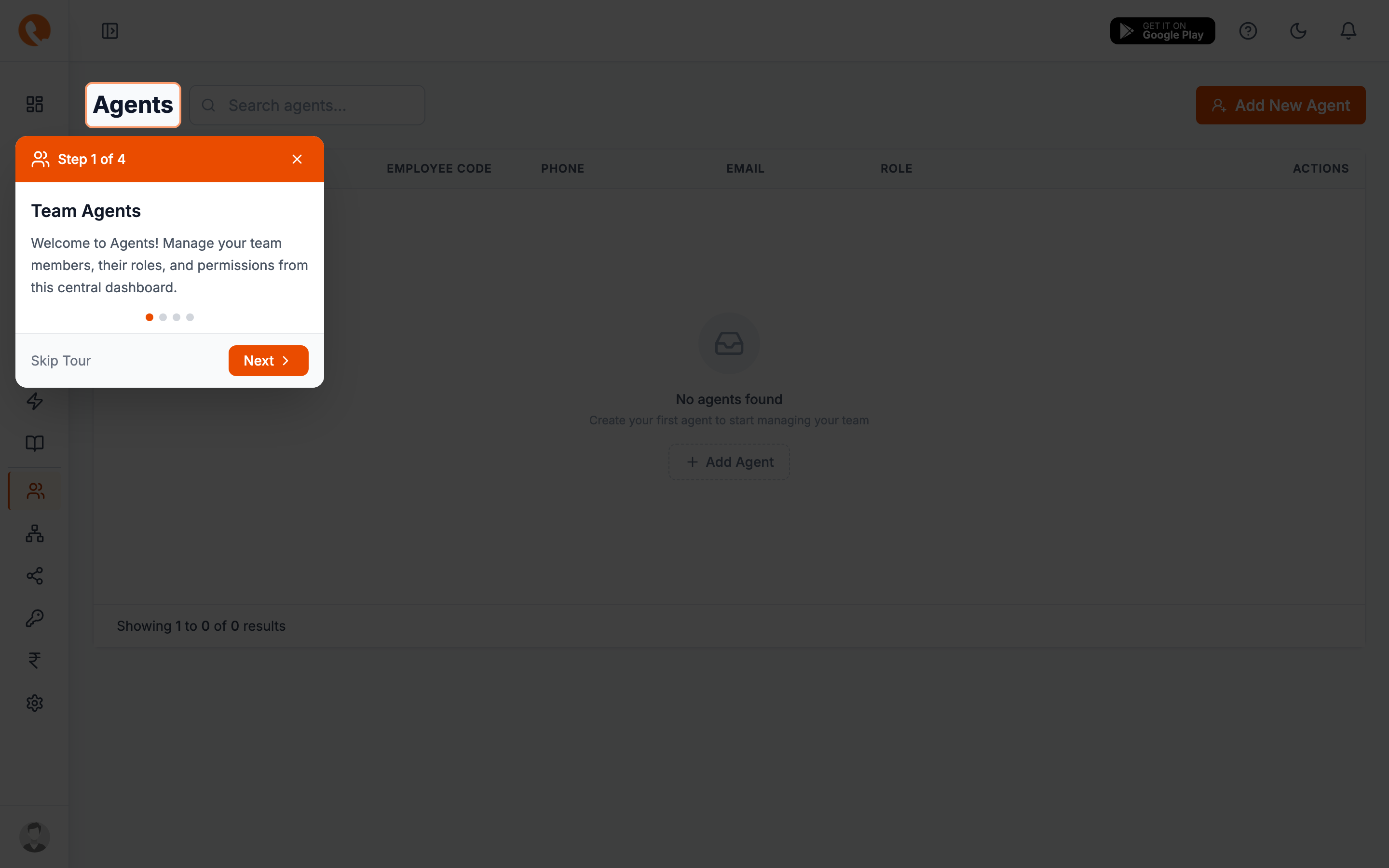
Adding a user
Click Add User. The form has the following fields:
| Field | Notes |
|---|---|
| Name | Display name shown across the app. |
| Used for sign-in. Must be unique within the company. | |
| Employee code | Optional. Useful if you have an existing HR system. |
| Phone | Used for WhatsApp notifications and as caller ID in some flows. |
| Department | Pick from departments you’ve configured. |
| Branch | Pick from branches you’ve configured. |
| Role | Pick from roles you’ve configured. Determines permissions. |
| Password | Initial password. The user can change it after first sign-in. |
| M-PIN | 4-digit PIN used by the mobile app for quick sign-in. |
| Lead cap | Maximum number of leads an agent can hold at any time. Used by auto-assignment and daily top-up. |
If you’ve hit your subscription’s agent limit, the Add User button is disabled. See Billing & subscription for raising the cap.
Editing a user
Click the row to edit. Every field above can be changed. Email changes apply immediately — the user will need to use the new address to sign in.
Banning a user
Toggle the Ban switch. A banned user:
- Can no longer sign in (web or mobile).
- Keeps their lead assignments — they’re not auto-redistributed.
- Still counts toward your subscription’s agent limit.
Use ban for temporary suspensions. To free up a seat, delete the user instead.
Roles
Sidebar → Roles
A role is a named bundle of permissions. Calliyo ships with a few default roles (Company Admin, Manager, Agent) and you can create more.
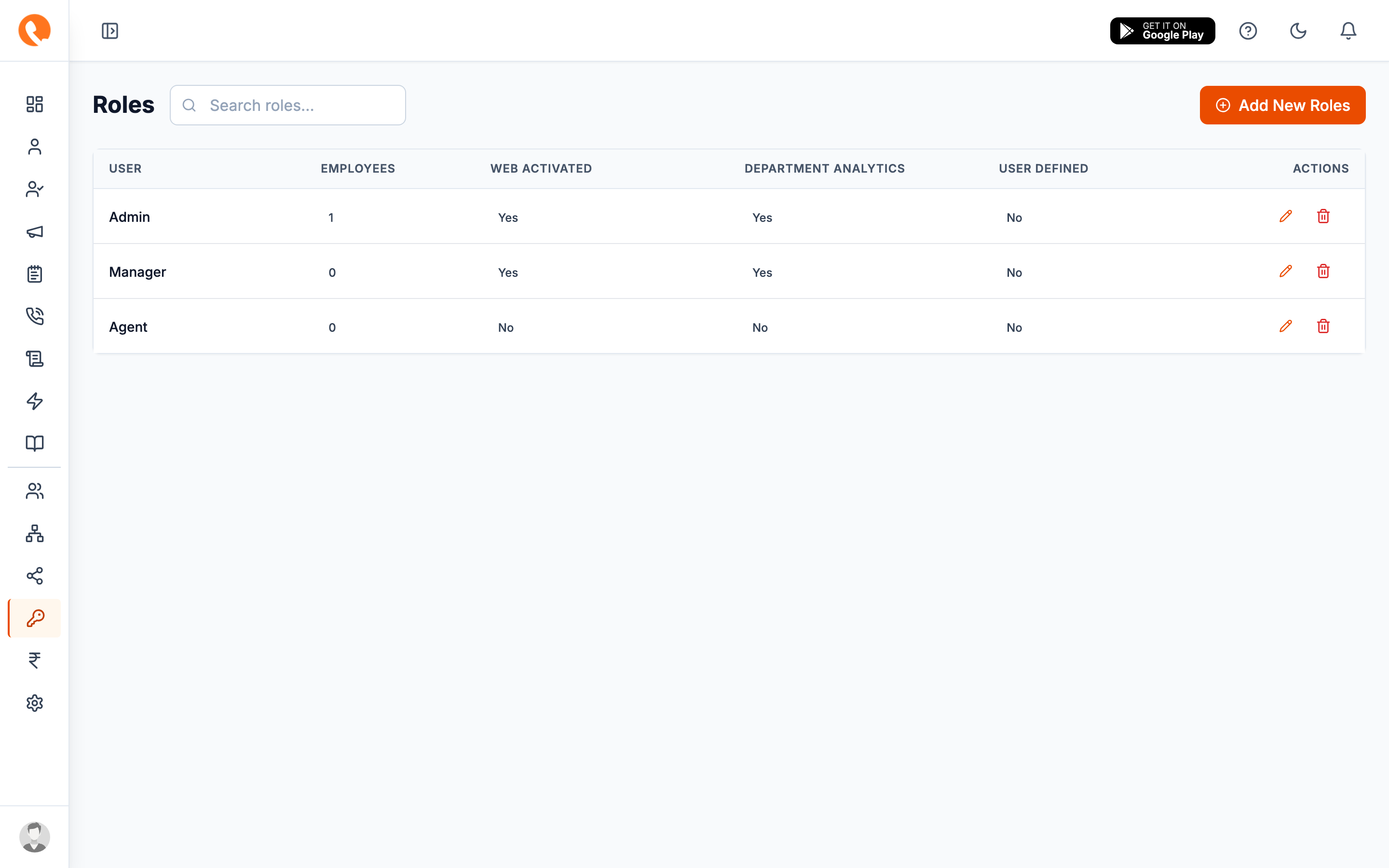
What a role controls
A role is a list of resource × action permissions. The resources mirror
the sidebar items — management (leads/customers), task, agent,
department, branch, role, billing, campaign, workflow, reports,
settings. Actions are typically read / write / delete.
If a user opens a page their role doesn’t allow, they’re redirected to a “no permission” view — the menu item itself is hidden if the role can’t read it.
Creating a role
Click Add New Role, give it a name, and tick the permissions to include. Save.
Don’t accidentally remove all admins. Calliyo will not let you delete the last user with the system-defined company admin role, but it will let you change their role to one without admin permissions. Keep a backup admin.