Today’s follow-ups
Every lead you marked Interested, Follow-up, Call Later, or similar comes with a scheduled date and time. The Today’s Follow-ups screen surfaces the ones due today, so you know who to call back.
Opening the screen
Two ways in:
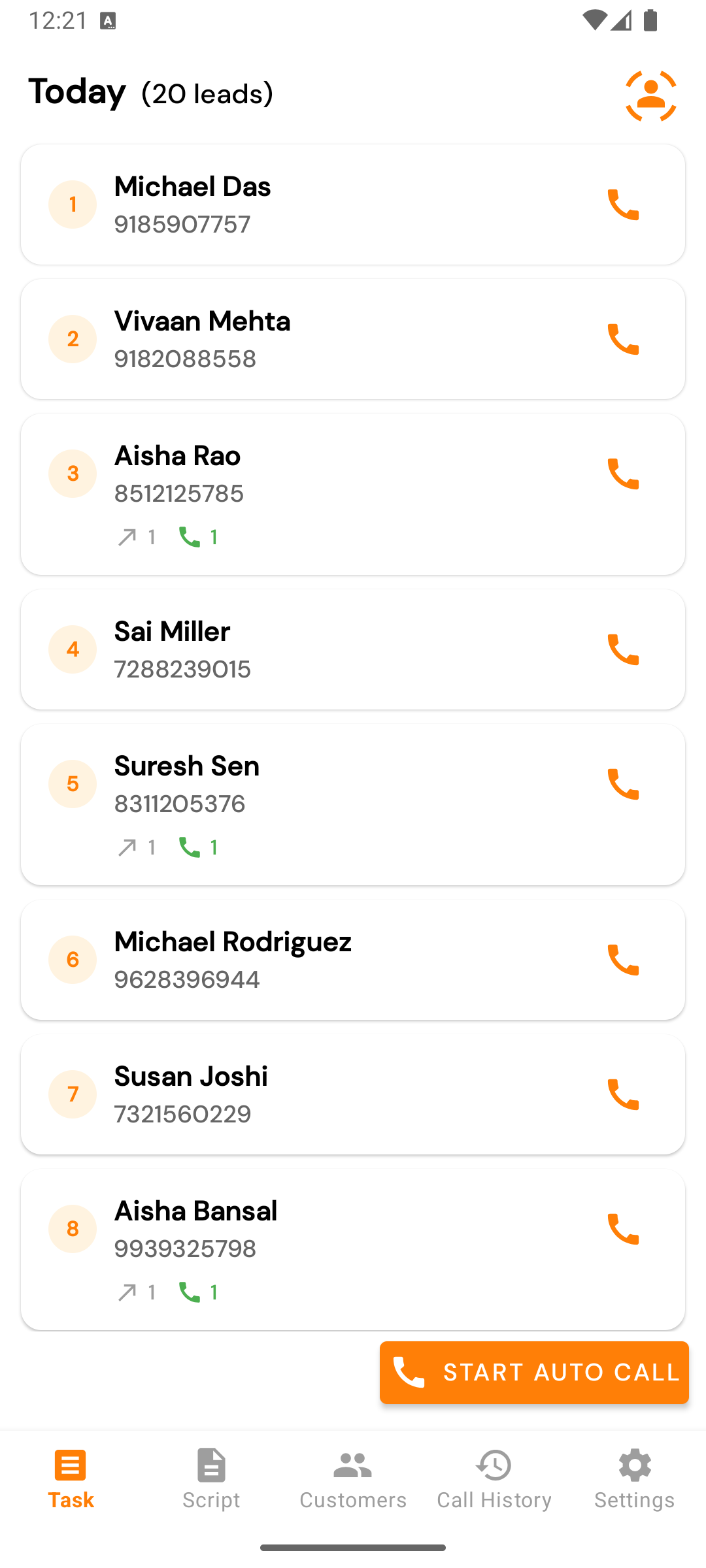
- Tasks tab → follow-up icon (top)
- A notification that fires 5 minutes (or 30 seconds) before the scheduled time — tap it to open the screen with that lead in focus.
What the screen shows
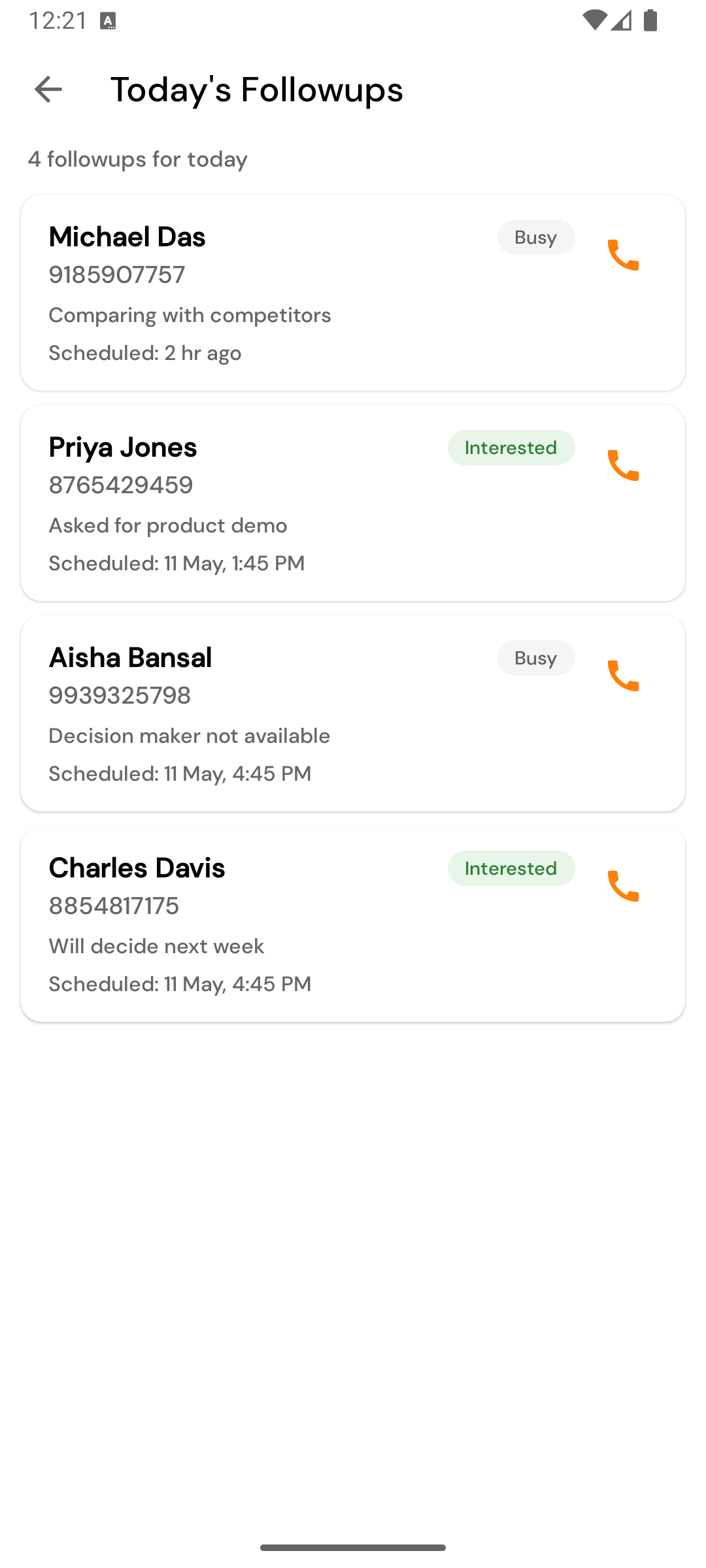
The header reads N followups for today and the list shows one row per
follow-up:
- Name of the lead.
- Phone number.
- Call button — initiates the call directly.
Tap any row (not the call button) to open the Follow-up detail screen for that lead.
Follow-up detail
This is the deepest view of a single lead on mobile. It shows:
Header
- The lead’s name and phone.
- Try count — how many times you’ve attempted them so far.
- Success count — how many calls actually connected (duration > 0).
Call History tab
Every previous call to this lead, with:
- Agent who made the call (if your team has multiple agents on a lead).
- Status logged at the time.
- Duration.
- Time elapsed since (e.g. “2 hours ago”).
- Recording indicator (a small icon) if there’s a recording attached.
Status Timeline tab
A vertical timeline of every status change for this lead:
Unassigned → Assigned → Followups → Interested → CustomerUseful when you’re picking up a lead someone else worked previously and want to see what happened.
Working the follow-up
The natural flow:
- Tap the row → see the call history.
- Tap the call icon at the top → initiate the call.
- After hang-up → log the Call Feedback.
- Either schedule the next follow-up, or mark a terminal status (Customer, Not Interested).
When you submit, Calliyo:
- Adds a new entry to the call history.
- Adds a new status to the timeline (if status changed).
- Removes the follow-up from “today’s” list if you didn’t reschedule for today.
Notifications
If notifications are enabled (Settings tab toggle), you’ll get a heads-up:
- 5 minutes before the scheduled time — “Calling [Name] in 5 minutes”.
- 30 seconds before — “Time to call [Name]”.
See Notifications & auto-checkout for the permission requirements and how to test.
Notifications use Android’s exact-alarm system. On Android 12+ you must grant Alarms & reminders permission for follow-up notifications to fire on time. Calliyo prompts for this; if you declined, re-enable from Settings → Apps → Calliyo → Alarms & reminders.
Empty state
If you don’t have any follow-ups scheduled for today:
🎉 Hurray! no followup calls for today
That just means you’re ahead. Use the time to work fresh leads from the Tasks tab.