Install the app
The Calliyo mobile app is for Android only at the moment. Minimum supported version is Android 7.0 (Nougat, API 24).
Option A — Play Store
Open the Play Store
Search for Calliyo and pick the listing by Calliyo. The package name
shown should be com.calliyo.io.
Install
Tap Install. The app downloads (~25 MB) and a Calliyo icon appears in your launcher.
Open
Open the app. You’ll see the splash screen, then the sign-in screen — continue with Sign in & mPIN.
Option B — Direct APK (side-load)
Some teams distribute Calliyo as a signed APK rather than via the Play Store — typically larger enterprises with managed device fleets.
Get the APK
Your admin will share a calliyo-vX.Y.Z.apk file (over email, MDM, or a
shared drive). Don’t install APKs from sources you don’t trust.
Allow install from this source
Android blocks third-party installs by default. Open Settings → Apps → Special access → Install unknown apps, pick your file manager / email app, and toggle Allow from this source.
Install
Tap the APK file. Android shows a permission prompt and the standard “App not from Play Protect” warning — confirm install.
Open
Same as Play Store path — splash → sign-in.
Required permissions
On first run (or first call), Android will ask for several permissions. Granting them is required for Calliyo to function.
| Permission | Why Calliyo needs it |
|---|---|
| Phone (CALL_PHONE) | Place outgoing calls when you tap a lead. |
| Phone state (READ_PHONE_STATE) | Detect when a call ends, so the feedback screen can open. |
| Notifications | Follow-up reminders. Android 13+ only. |
| Files & media | Optional — only if you enable call recording. Calliyo reads the recordings folder you choose. |
If you decline a permission, the corresponding feature stops working. You can re-grant from Android’s Settings → Apps → Calliyo → Permissions later.
Calliyo never records calls itself. It reads files produced by your phone’s native dialler (or a third-party dialler you’ve configured). See Call recording for the full caveats.
What to expect after install
- Splash screen (Calliyo logo, ~2 seconds).
- Sign-in screen.
- After signing in: attendance check-in.
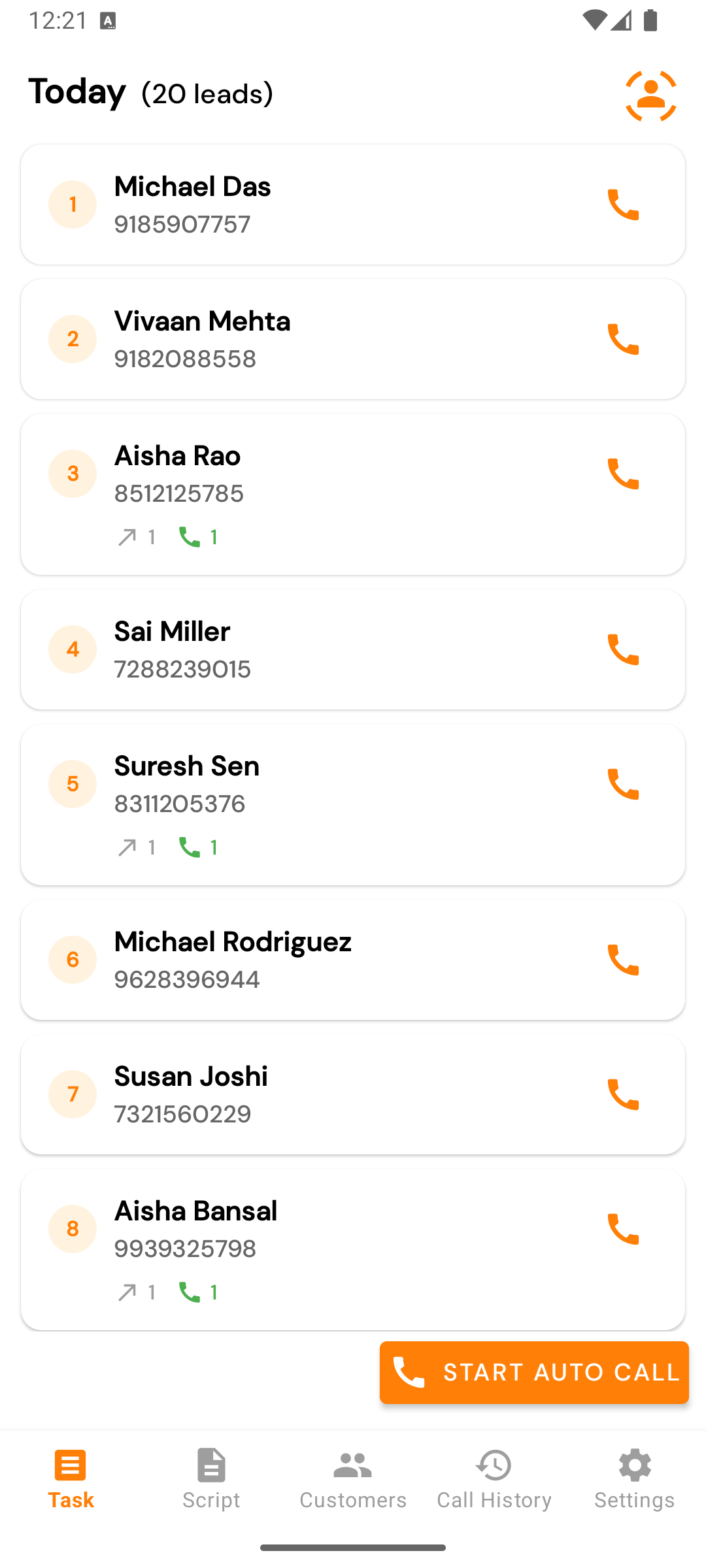
- Then: the Tasks tab with today’s leads.
Continue to Sign in & mPIN.