Customers
Tabs bar → Customers
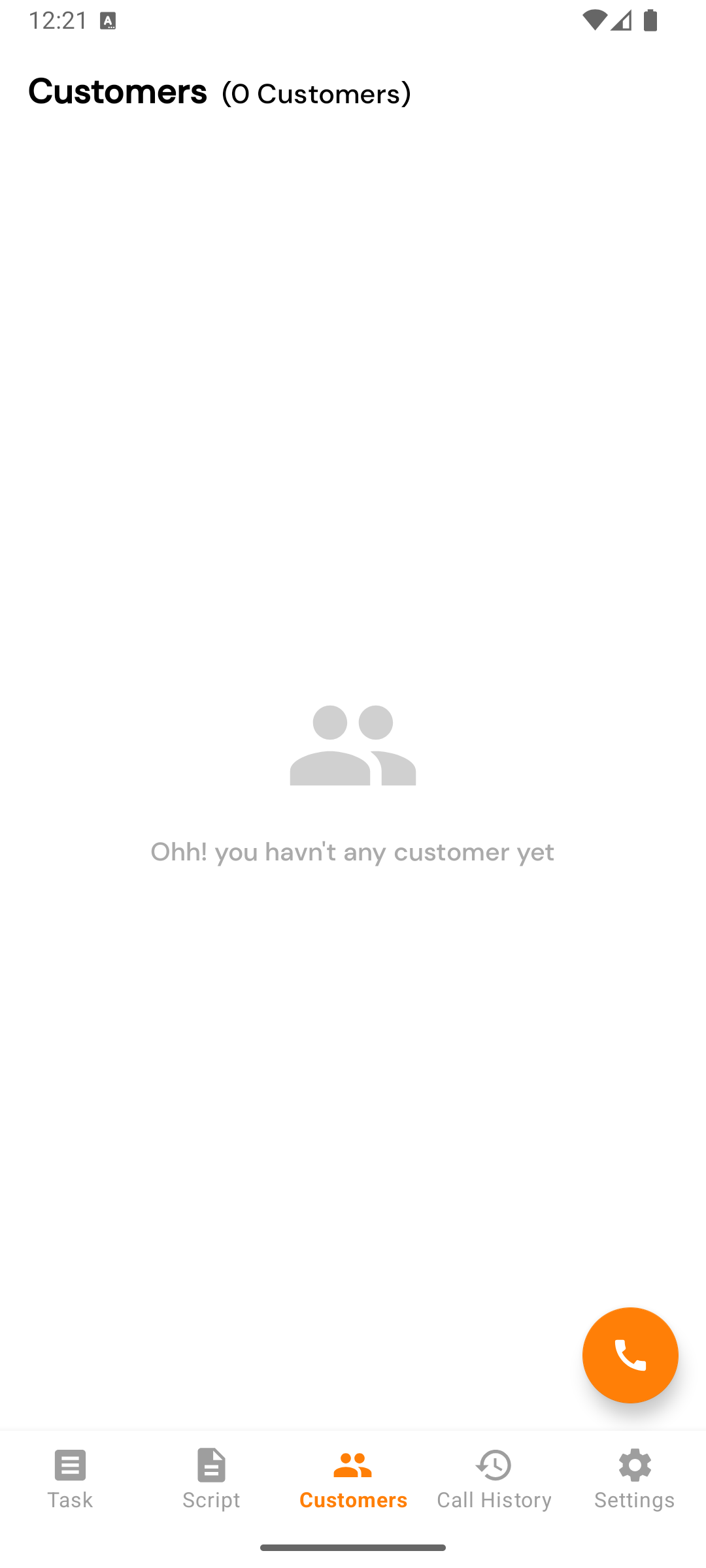
The Customers tab shows leads that converted — the wins. It also hosts the dial pad for calling any number that isn’t on your assigned list.
What’s on the list
Every lead with status Customer (or whatever your company renamed it to) that you own. Each row shows:
- Name
- Phone number
- Call button
The header reads (N Customers).
Whether you see all customers or just your own depends on Settings → Configurations → Show customer to. Default: agents see their own; admins see all.
Calling a customer
Tap the row or the call button — same flow as any other call. After hang-up, the Call Feedback screen opens. Note that follow-up scheduling still works on customers; useful for post-sale check-ins.
The dial pad
Floating action button in the bottom-right corner. Tap it for a numeric dial pad in a bottom sheet:
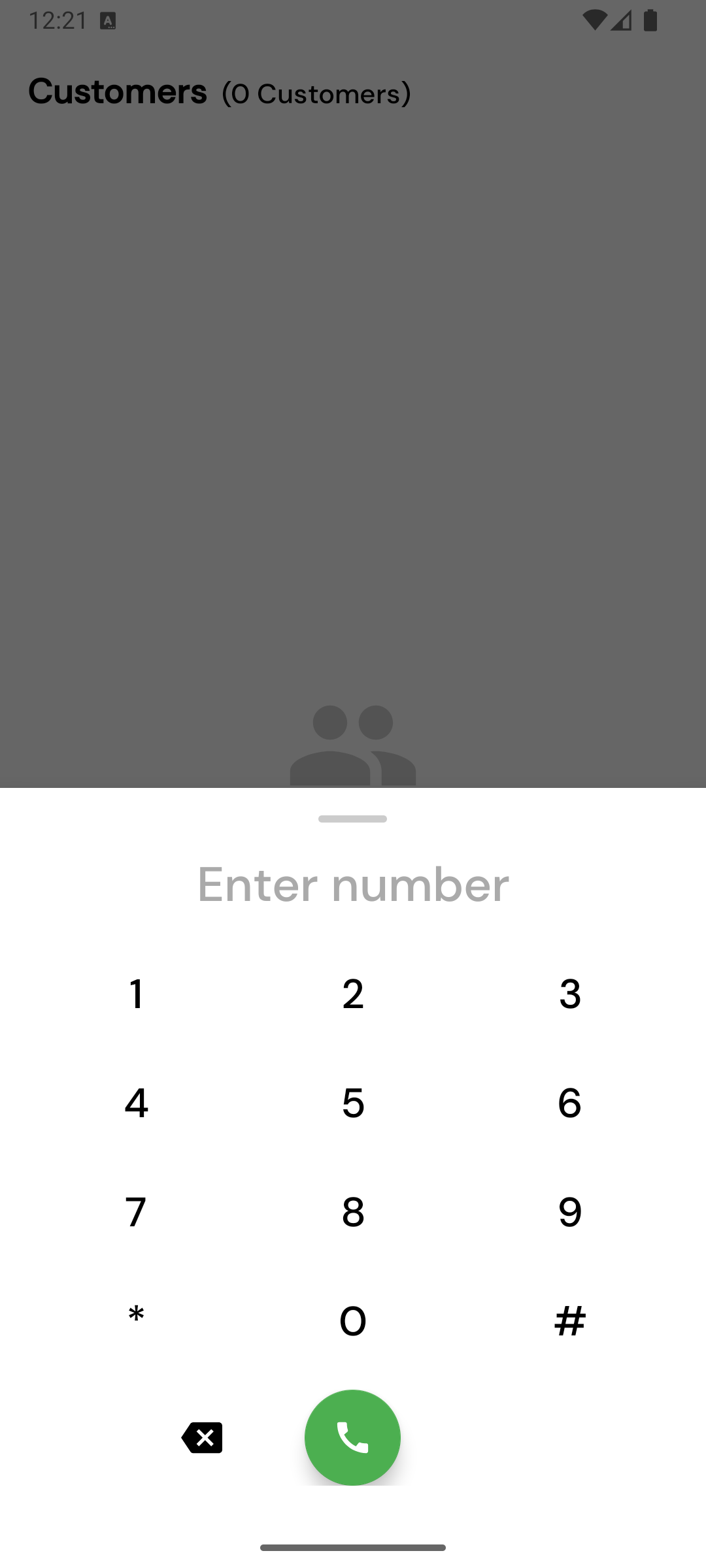
- Number buttons (0–9, *, #).
- A display showing what you’ve typed.
- Backspace — single-tap deletes one digit; long-press clears the whole number.
- Call — initiates the call.
What happens after a dial-pad call?
After you hang up, the Call Feedback screen opens with the number pre-filled. Submitting will create a new lead in your company with:
- The phone number you dialled
- The name you (optionally) typed
- The status you picked
- The note you entered
This is the right way to capture a walk-in or a callback from someone who isn’t already on your list.
Tapping a customer row
Opens the same lead detail view as elsewhere in the app — call history, status timeline, and the option to call or schedule a follow-up.