Tasks tab — your daily lead list
The Tasks tab is where you’ll spend most of your time. It shows every lead currently assigned to you, in the order Calliyo thinks you should call them.
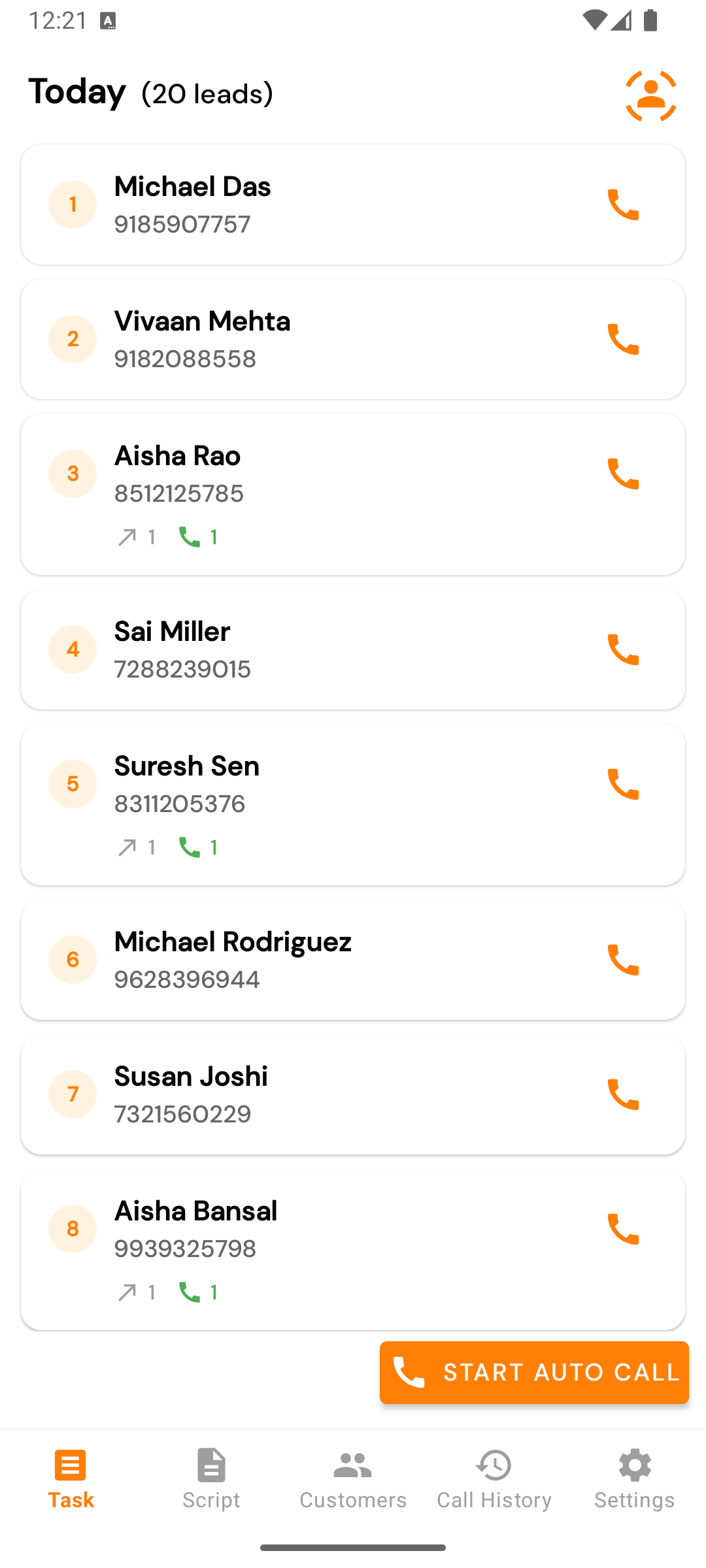
What each row shows
| Element | What it means |
|---|---|
| Name | The lead’s name, as captured by your admin or the web form. |
| Phone number | The number you’ll dial. Tap to start the call directly. |
| Call button | Same action as tapping the row — initiate a call. |
| Try count / Success count (when present) | How many times you’ve tried this lead and how many times you’ve actually connected. |
Header strip at the top shows the total assigned count in the format
(N leads).
How the list is ordered
Calliyo sorts by a combination of:
- Newly assigned (top of the list).
- Follow-ups due today, sorted by scheduled time.
- Recently-attempted leads at the bottom.
You can’t manually re-order from the mobile app. If you want a different order, ask your admin to change the auto-assignment configuration on the web app.
Pulling to refresh
Swipe down on the list to refresh. Useful after:
- Your admin reassigns leads to you.
- A daily top-up just ran (typical: early morning).
- You just resolved several leads and the list looks stale.
Pagination
The list loads in chunks. As you scroll, Calliyo fetches the next page automatically (it kicks in when you’re within 5 rows of the bottom).
Auto-call mode
A power-user feature, off by default. Tap Start Auto Call at the top of the Tasks tab.
What happens:
- Calliyo dials the first lead.
- When you hang up, the Call Feedback screen opens.
- After you submit feedback, a snackbar counts down (default 5 seconds):
Calling [Name] in 5s…. - The next lead is dialled automatically.
Tap Stop Auto Call to break out of the loop. The countdown also cancels if you tap the snackbar before it expires.
Adjust the delay (5–30 seconds) at Settings → Auto-Call Delay.
Auto-call is incredibly efficient for high-volume cold lists, but it’s easy to call the wrong number if you’ve stopped paying attention. Watch the countdown — and don’t run auto-call mode while distracted.
Today’s follow-ups shortcut
The follow-up icon at the top of the Tasks tab opens Today’s follow-ups — the same list filtered to just the leads with a scheduled follow-up for today.
Empty state
If you genuinely have no work, you’ll see:
🎉 Hurray! no tasks for today
This happens when your auto-assignment cap is empty and no one has manually pushed leads to you. Pull to refresh after a few minutes in case your admin assigns more.